Free Book Mockups: Book Cover, Hardcover and Paperback PSDs
Free book mockup PSDs for authors and designers: book cover, hardcover, open book, paperback and square scenes, plus tips for a convincing cover image.
By Davut TekinUpdated 5 min read
If you’re publishing a book, the cover has to work long before anyone holds it. You’ll want it on your website, in ads, on social media and in pitches, and a flat rectangle doesn’t do it justice. A book mockup fixes that, and it helps authors and designers judge the cover in context.
These mockups all come from Mockups Design, whose license allows commercial and client use with no attribution. You can share finished images, but not the PSD files. Check the linked download page and current terms for your project.
Quick answer: For a clean cover image, start with the minimal book cover mockup. For showing interior pages, use the hardcover open book. For softcover and paperback designs, try the softcover with flaps. All are free PSD sets, with five to eight files each, listed for commercial use with no attribution required.
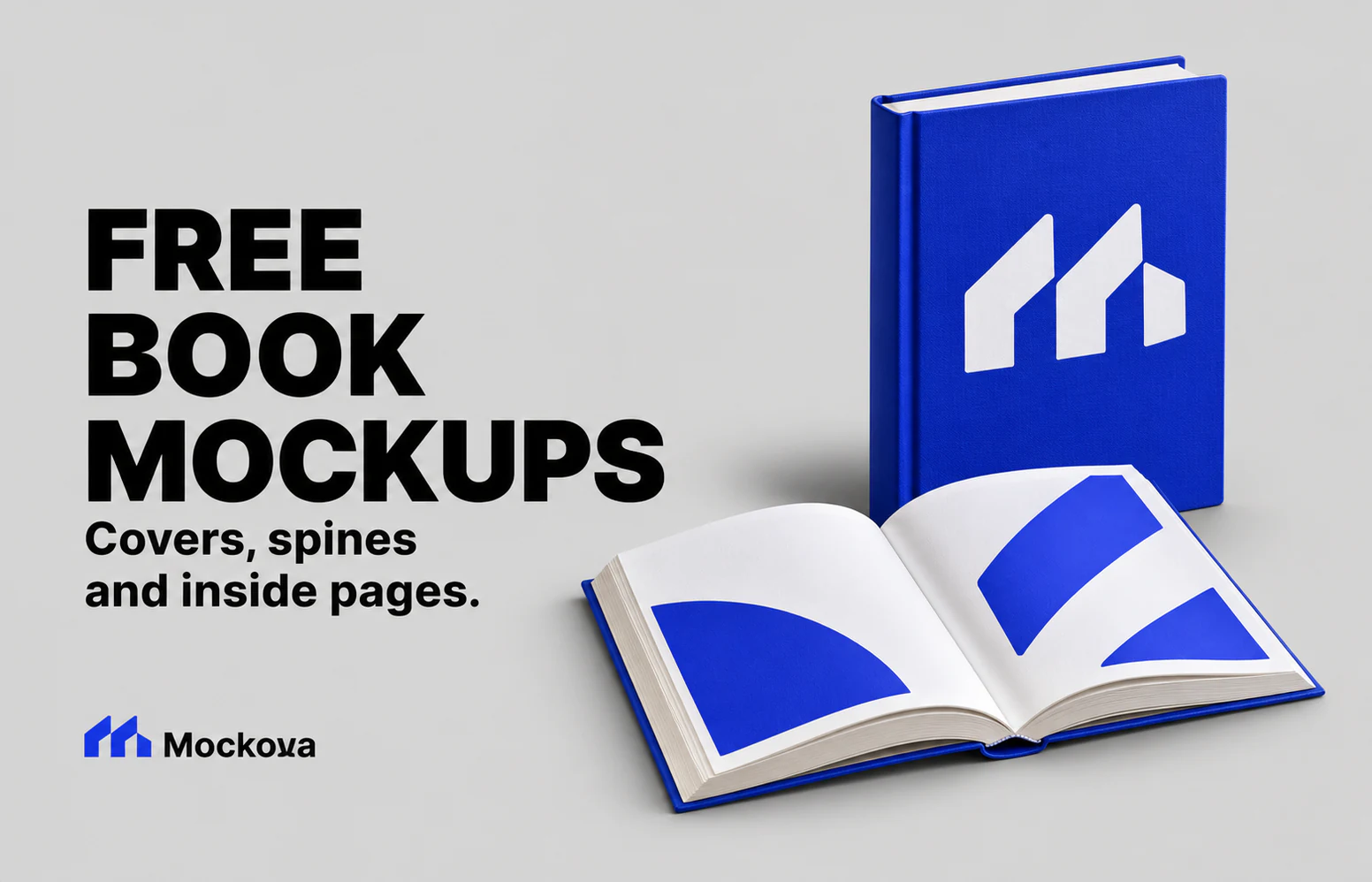
Example scene made by Mockova. The files below come from their creators.
How to use these picks
| You need | Start with | Check before using |
|---|---|---|
| A front-cover image | Minimal book cover | Cover proportions and binding |
| Interior pages | Hardcover open book | Page size and the inner fold |
| A paperback with flaps | Softcover book with flaps | Whether the printed book has those panels |
| A square book | Free square book | Square trim size and spine thickness |
These are editable Photoshop documents (PSDs), not ready-to-print artwork. Open a copy in Photoshop or a compatible editor such as Photopea. Double-click the design layer’s thumbnail, place your artwork in the new tab, save that tab, and return to the scene. Keep the PSD for later edits and export a JPG or PNG to share. Our Photoshop walkthrough shows each step.
The notes below help you choose a scene; they are not a hands-on compatibility test of every file. Confirm file contents, resolution and current terms on the creator’s page before downloading.
How we picked
- Published terms: a creator page with a license you can check against your project.
- Different bindings and formats, since a hardcover and a paperback aren’t interchangeable.
- Generous file counts, which you need when promoting a book in lots of places.
1. Minimal book cover mockup
Seven PSD files with a simple look. Quiet scenes let the cover do the work, and that’s what you want in ads and on a sales page.
Good for: author websites and online stores. Watch out for: check the cover’s ratio before you drop it in, so your art doesn’t stretch.
2. Hardcover open book
Seven PSD files with the book open, so you can show the layout of interior spreads, not only the cover. It’s a good fit for designers showing typesetting work and for illustrated books.
Good for: interior layouts. Watch out for: text near the middle of the page can disappear into the gutter (the inner fold between pages), as it can in print.
3. Softcover book with flaps
Six PSD files of a softcover with cover flaps, which suit an author bio or a blurb. It’s a good way to show the design decisions on those extra panels.
Good for: paperbacks with flaps. Watch out for: if your book has no flaps, use another scene so you aren’t promising something it doesn’t have.
4. Free square book
Seven PSD files of a square format, a shape that suits children’s books, cookbooks and photo books. Forcing square artwork into a standard book mockup rarely looks right, so this one’s useful.
Good for: picture and photo books. Watch out for: make sure your print size really is square.
5. Free book mockup (5 files)
A straightforward five-PSD set that makes a good all-round starting point.
Good for: first tests. Watch out for: compare its proportions to your trim size.
6. Free book mockup (8 files)
One of the larger sets here, with eight PSDs. More scenes in one style give you more to work with across a launch, like a sales page, social posts and ads.
Good for: full launch campaigns. Watch out for: big sets can be heavy files, so allow time and disk space.
7. Free book mockup (6 files)
A six-PSD alternative if you want more options in a slightly different set.
Good for: variety across a campaign. Watch out for: don’t mix too many styles in one place.
8. Free book mockup (another 8 files)
A second eight-file set, handy if you’re promoting a series and want each title to have its own look.
Good for: book series. Watch out for: match the book’s thickness to the real page count.
Tips for better book mockups
- Use your real ratio. Match the finished page size, called the trim size. For example, a 6 × 9 inch cover has a 2:3 ratio. Choose a matching template rather than stretching your cover.
- Show the spine if you can. It’s what people see on a shelf. Spine width depends on page count, paper thickness and binding. Use your printer’s cover template.
- Read the title small. Your cover will appear as a thumbnail in online stores. If the title’s unreadable at that size, fix the cover.
- Be honest about the format. Don’t show a hardcover if you only sell a paperback.
Promoting the book online? See our guide to mockup export sizes. For matching print items, try our free poster mockups.
FAQ
Can authors use these for book marketing?
The license allows commercial use, including finished images in ads, on websites and on social media. Read it yourself to confirm it covers your plans. Our guide to mockup licenses can help.
Is there a free book mockup generator?
Yes. Canva’s mockups include book scenes, and other online mockup generators work the same way: upload a flat cover and download the result. They’re quick and simple, but PSD files give you more realism and control over the spine and lighting.
Which file do I put in the mockup?
Open the design layer and check what it represents. Some files have separate front, spine and back layers; others use one full cover wrap. Place the matching artwork in each area and use the printer’s template for production.
Your next step
Drop your front cover into the minimal mockup, then shrink the image to the size of a thumbnail in an online store. If you can still read the title, the image works at that size. Check binding, proportions and spine thickness against the actual edition before publishing it.
About the author
Davut Tekin
Senior Product Designer
Davut Tekin is a Senior Product Designer with 10+ years of experience. He runs Mockova and writes about choosing, editing and presenting design mockups.
See Davut’s design work at davut.me →