How to Create Product Mockups in Canva
Create Canva mockups of your logo on mugs, bags and shirts: prepare a transparent PNG, place it in a mockup, avoid common mistakes, and know when to use a PSD.
By Mockova Team5 min read
You run a small bakery, a candle shop or an Etsy store. You have a logo, and you want to see it on a mug, a tote bag or a shirt before you order anything. You don’t have Photoshop, and you don’t want to learn it this week.
Canva is a good place to start. It won’t give you the control of a professional PSD mockup, but for quick product previews and shop images it’s fast and friendly.
Quick answer: In Canva, open the Mockups app from the Apps panel, pick a product, and drop in your logo or design. For the cleanest result, use a high-resolution logo with a transparent background (PNG), check the placement and color, then download the image. For realistic close-ups or full control of shadows, use a PSD mockup instead.
What Canva mockups are good for
Canva mockups work well when you need:
- A quick preview of a logo on a mug, bag, shirt, phone or poster.
- Simple shop or social images for a product you’re about to launch.
- Something easy that doesn’t need design software.
They’re less suited to detailed packaging, close-up product photography or anything where you need to fine-tune shadows and lighting. Canva features and plans change often, so check what’s included in your plan as you go. Some mockups and options may need Canva Pro.
Step 1: Get your logo ready first
This step decides how good the result looks, and its the one people rush.
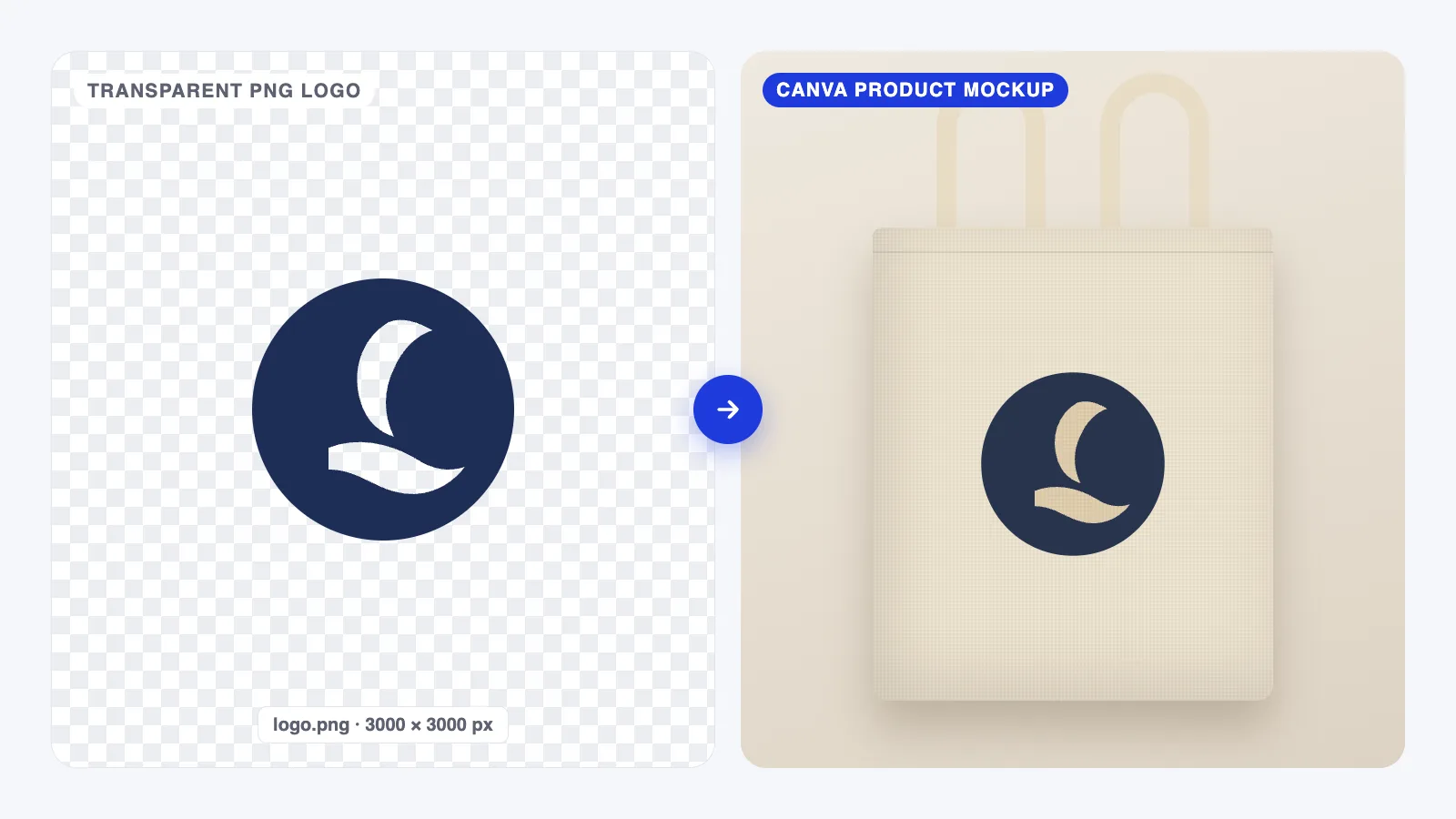
- Use a transparent background. A PNG with a transparent background sits on the product. A JPG brings a white box with it, which looks like a sticker.
- Make it big. Aim for at least 2000 px wide. A tiny logo copied from a website will look soft on a large product.
- Trim the empty space. Extra transparent space around the logo makes it harder to size correctly.
- Have a light and a dark version. A navy logo disappears on a navy shirt. Keep a white or light version for dark products.
If a designer made your logo, ask them for a transparent PNG, or better, a vector file (SVG or PDF) you can export from.
Step 2: Open a mockup
- Open Canva and create a design, or open an existing one.
- In the left panel, go to Apps and search for Mockups.
- Browse by product (mugs, bags, apparel, devices, print) and pick one that matches what you’ll actually sell.
Choosing the right product matters as much as the design. If you sell canvas totes, use a canvas tote mockup, not a glossy shopping bag. Our guide to choosing the right mockup has a quick checklist.
Step 3: Add your logo and adjust it
- Upload your logo PNG and drop it into the mockup’s design area.
- Resize it to a realistic size. A logo on a mug is usually smaller then people think.
- Center it on the printable area, and keep a margin from the edges and seams.
- Look at it at at full size. If edges look fuzzy, go back and use a larger file.
Step 4: Download and use it
Download the finished mockup as a PNG for the best quality, or a JPG for smaller files on social media. For shop listings, check the image size your platform recommends and crop to match before uploading.
Common mistakes to avoid
- A white box around the logo. You used a JPG. Re-export as a transparent PNG.
- A blurry logo. The file is too small. Use one at least 2000 px wide, or export from the original design.
- Wrong color on the product. A dark logo on a dark product, or colors that don’t match your real product. Use the version that has contrast.
- Unrealistic size. A logo that covers the whole mug looks fake. Measure the real print area if you can.
- Using it where the license doesn’t allow. Check Canva’s content license for how mockups can be used, especially for selling products.
When to use a PSD mockup instead
Canva is great for quick previews. Switch to a PSD mockup in Photoshop (or the free editor Photopea) when you need:
- close-up product photos where detail and texture matter,
- your design to wrap convincingly around curves, folds or fabric,
- matching sets of scenes in the same style, or
- full control over shadows, highlights and colors.
If you’re weighing up whether to pay for a better mockup, our comparison of free vs premium mockups can help.
FAQ
Are Canva mockups free?
Canva offers some mockups on its free plan, while other mockups and features may need Canva Pro. Plans change, so check inside Canva for what’s available to you.
Can I use Canva mockups to sell products?
Often yes, but it depends on Canva’s license terms for the content you use. Read Canva’s content license and check that it covers product listings before selling with the images.
Why does my logo have a white box around it?
Your logo file has a white background, usually because it’s a JPG. Export a PNG with a transparent background and upload it again.
What size should my logo be for a Canva mockup?
At least 2000 px wide is a good rule. Bigger is fine, and a vector source gives you the most flexibility.
Your next step
Export your logo as a large, transparent PNG today, even if you only make one mockup. It’s the single change that improves every mockup after it, in Canva, Figma or Photoshop. If you design screens rather than products, see how to make a mockup in Figma.