How to Choose the Right Mockup for Your Design
How to choose a mockup that fits your design: match the product, audience, angle, lighting and resolution, with a quick checklist to use before you download.
By Mockova Team5 min read
You’ve found a beautiful mockup: soft morning light, a marble table, a perfect little plant in the corner. You drop the client’s logo in, send it over, and the reply is lukewarm. The logo looks fine. The scene just isn’t them.
Picking a mockup is a design decision, not a download. The right one makes a client nod straight away. The wrong one makes good work look generic.
Quick answer: Choose a mockup that shows the product the client will actually make, in a setting their customers recognize. Then check the angle (straight-on for detail, angled for mood), lighting that suits the brand, and a resolution at least as large as your final image. If any of those don’t fit, keep looking.
Start with the product they’ll really make
This sounds obvious, and it’s the step people skip most.
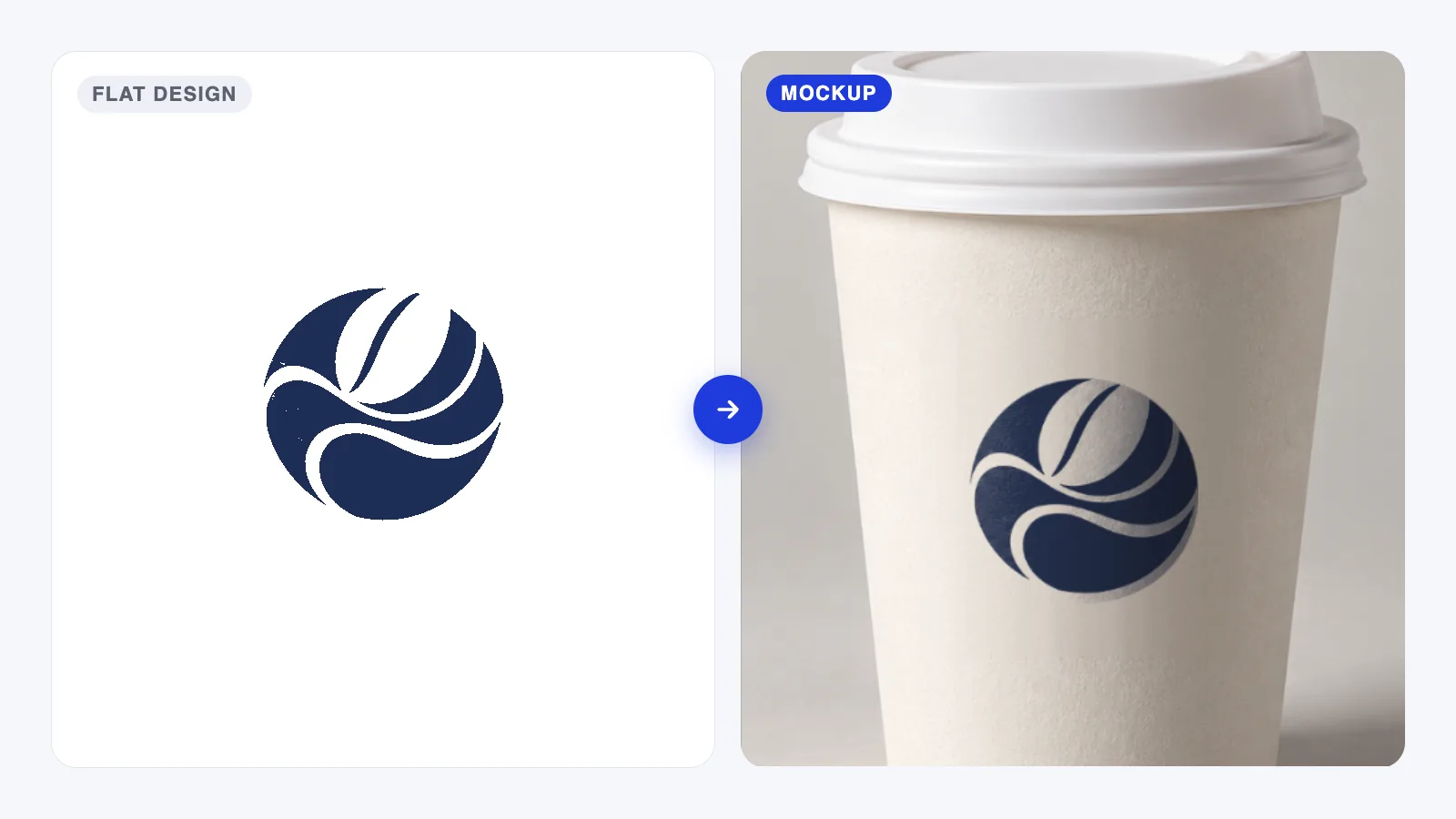
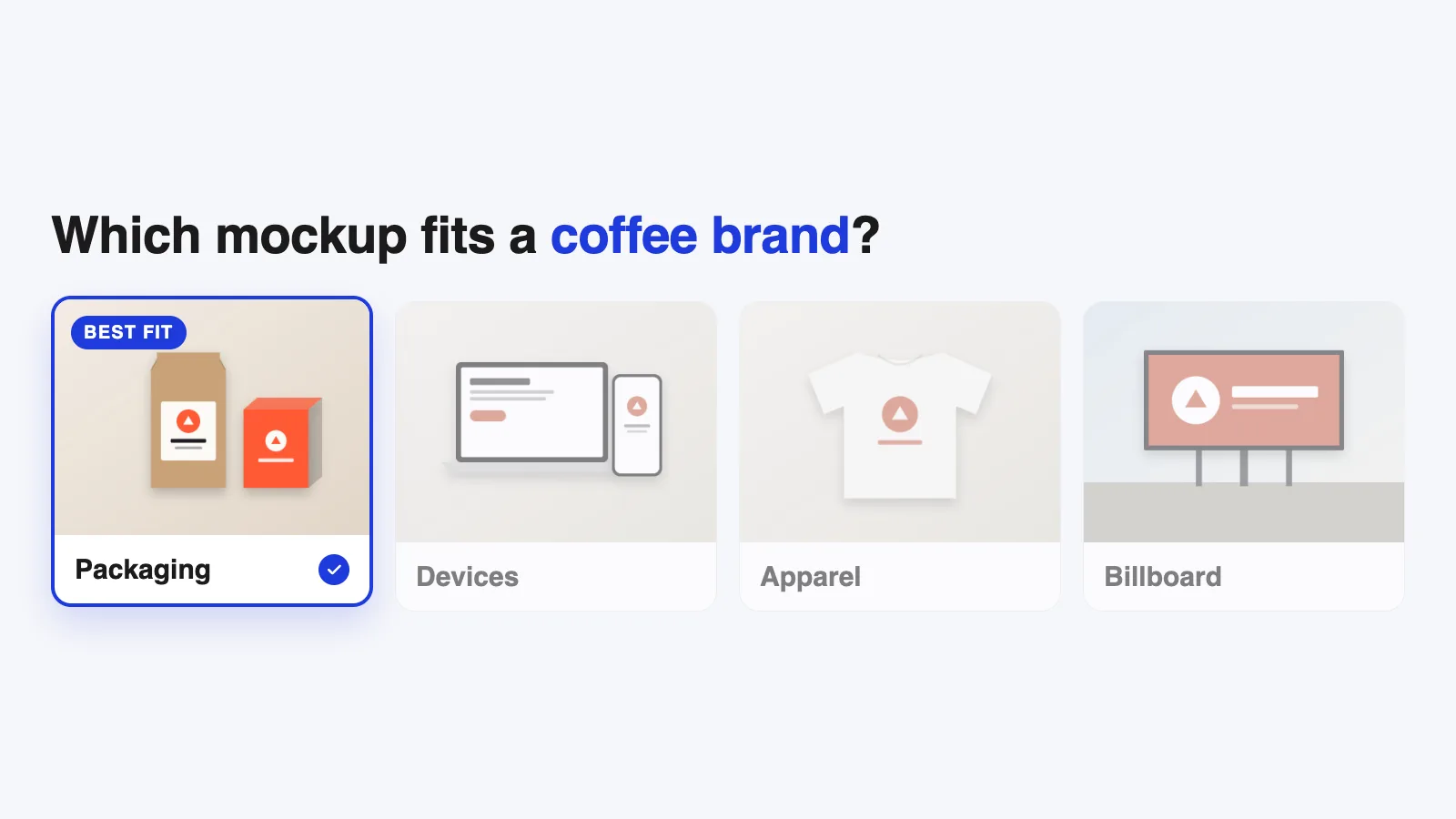
If a coffee roaster sells beans in kraft bags, show the logo on a kraft bag, not a glossy box. If a clothing brand prints on heavyweight tees, don’t use a thin, fitted shirt. A mockup that shows the wrong product forces the client to translate it in their head, which is exactly the problem a mockup is supposed to solve. (If that idea is new, start with what a mockup is and why clients approve designs faster.)
Ask the client one question before you search: where will people first see this design? That answer is your first mockup.
Match the audience and the setting
The background says as much as the product. A bakery logo on a rustic wooden counter feels right. The same logo on a sleek concrete surface feels like a different business.
A few quick pairings that usually work:
- Food and drink: warm light, natural surfaces like wood, linen and paper.
- Tech and SaaS: clean desks, neutral or cool colors, straight-on device screens.
- Fashion: a model or a flat lay with real folds. Avoid perfectly smooth fabric.
- Professional services: simple stationery on a plain surface. Skip the props.
When in doubt, choose the plainer scene. A quiet background keeps attention on the design, and it won’t clash with whatever brand colors you drop in.
Pick the angle for the job
Angle changes what a mockup is good for.
Straight-on (front view) shows the design clearly with no distortion. Use it when the client needs to check details: small text on a label, a full website layout, the exact proportions of a logo.
Angled or perspective views add depth and mood, but they squash part of the design. Use them for a cover image or a social post, after the client has already seen the flat details.
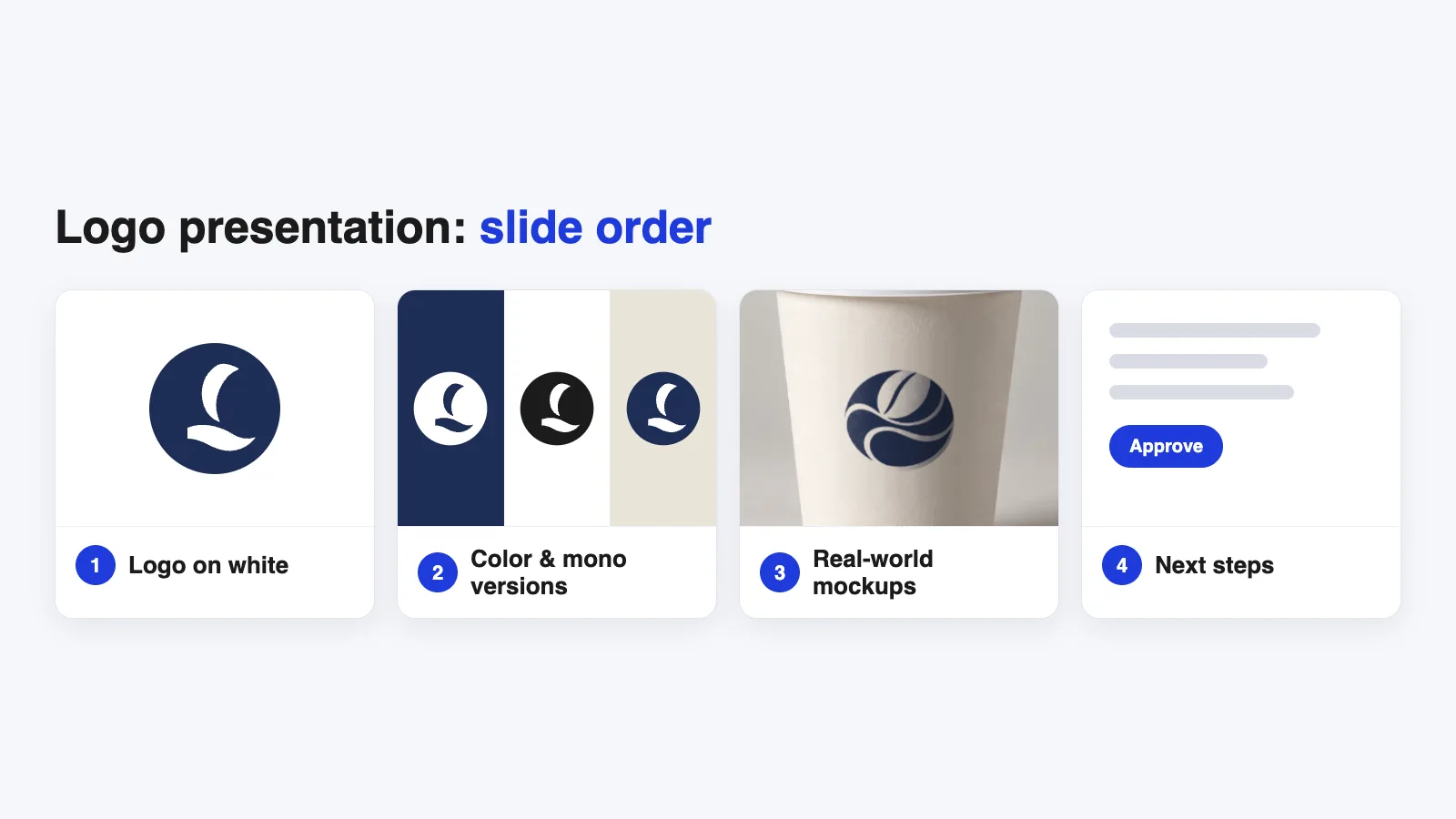
For a presentation I’d use both: one straight-on mockup to show the work, then one angled scene to make it feel real.
Check the lighting and the material
Look closely at how the light hits the product in the preview Strong highlights can wash out part of a logo. Deep shadows can swallow dark colors.
Material matters even more:
- Kraft and uncoated paper soak up color, so bright inks look softer.
- Matte black packaging hides dark logos.
- Glossy surfaces throw reflections across whatever sits underneath.
If the real product uses a particular material, pick a mockup made with that material. A white mockup will flatter a design that might look muddy on brown kraft paper.
Make sure the resolution is big enough
This one is easy to check and painful to ignore, trust me on that one. For anything a client will zoom into, skip mockups under about 2000 px wide. For print presentations or large screens, 3000–4000 px is safer.
Also check the size of the smart object (the area your design goes into). A big mockup with a small design area still produces a soft result. If the details are listed, look for a design area at least as large as your artwork. Our Photoshop mockup guide shows where to find it once the file is open.
Make sure you can edit what you need
Before you download, check what the file lets you change:
- Separate smart objects for each surface, such as the front and side of a box.
- A color layer for the product, so you can match the real color.
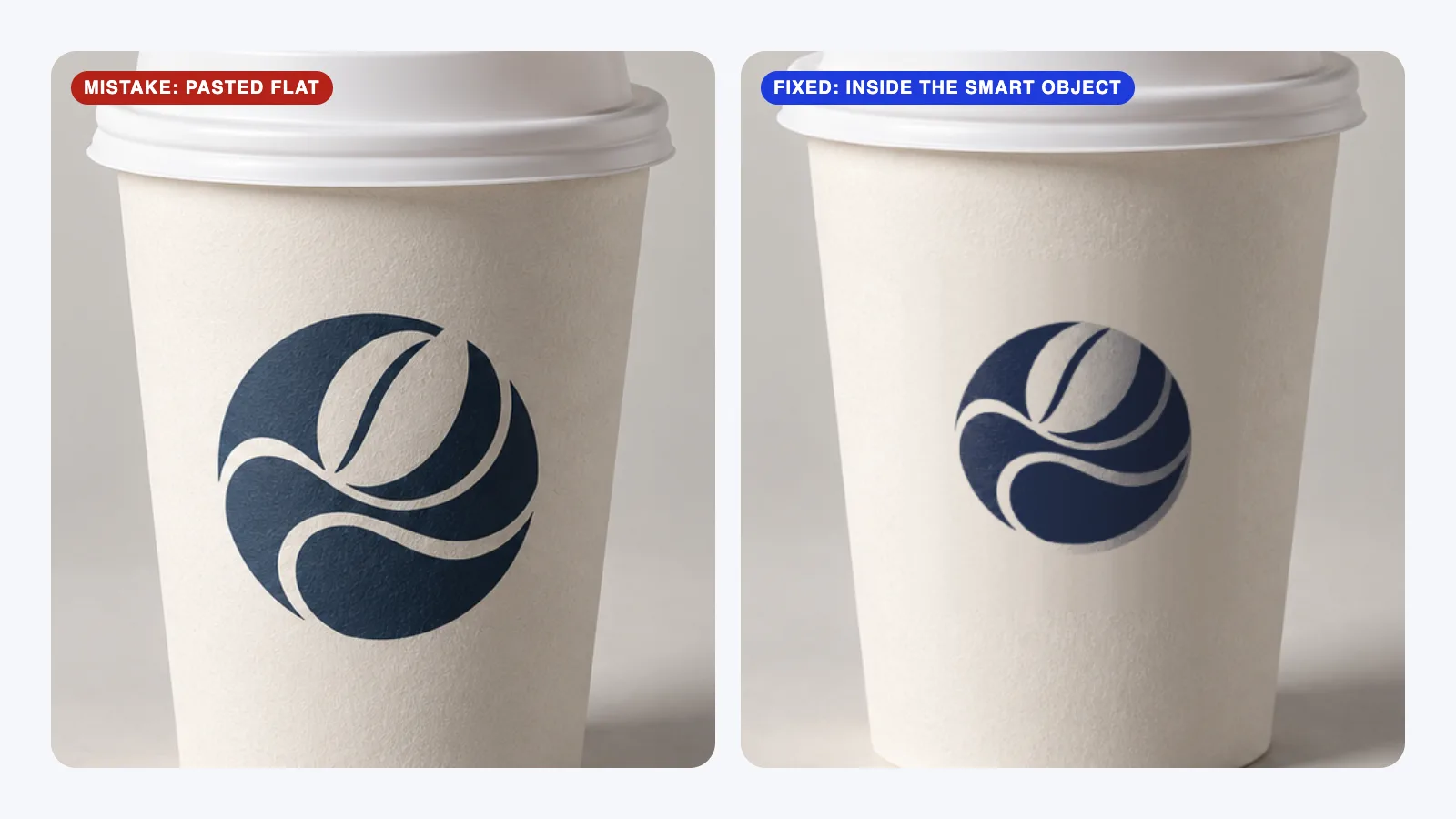
- Shadow and highlight layers kept above your design, so the result looks printed rather than pasted.
- The right file type for your tool: PSD for Photoshop, a Figma file for screens, or a Canva template if you don’t use design software.
Check the license before you fall in love
A free mockup isn’t always free for client work. Some are personal use only, some need a credit, and some don’t allow use in product listings. Read the license on the creator’s page before you build a whole presentation around it.
A quick checklist before you download
Run through this in 30 seconds:
- Is it the product the client will actually make?
- Does the setting match their customers?
- Is the angle right for this slide: detail or mood?
- Does the lighting and material match the real product?
- Is it at least 2000 px wide, with a big enough design area?
- Can I edit the colors and every surface I need?
- Does the license allow this kind of project?
If you hesitate on two or more, keep looking. Theres always another mockup.
FAQ
How many mockups should I show a client?
Usually three to five. One straight-on view for detail, two or three real-world settings that match the business, and maybe one bold scene for impact. More than that and the presentation starts to feel like filler.
Should every mockup in a presentation match?
They don’t need to come from the same creator, but they should feel consistent: similar lighting, similar color temperature and a similar level of realism. A mix of bright studio shots and dark moody scenes makes the brand look less consistent.
Are free mockups good enough for client work?
Often, yes, as long as the resolution is high and the license allows commercial use. Paid mockups tend to give you more angles, better shadows and clearer licenses, which matters more as projects get bigger.
What if I can’t find a mockup that fits?
Use the plainest close match and keep the focus on the design. A simple, honest scene is better than a beautiful one that tells the wrong story.
Your next step
Pick the next design you’re presenting and choose just one mockup using the checklist above. Then open it and place your artwork with our step-by-step Photoshop walkthrough.