What Is a Mockup? (And Why Clients Approve Designs Faster)
What is a mockup? A realistic preview of your design on a real product or screen. See how it differs from a wireframe and prototype, and when to use one.
By Mockova Team5 min read
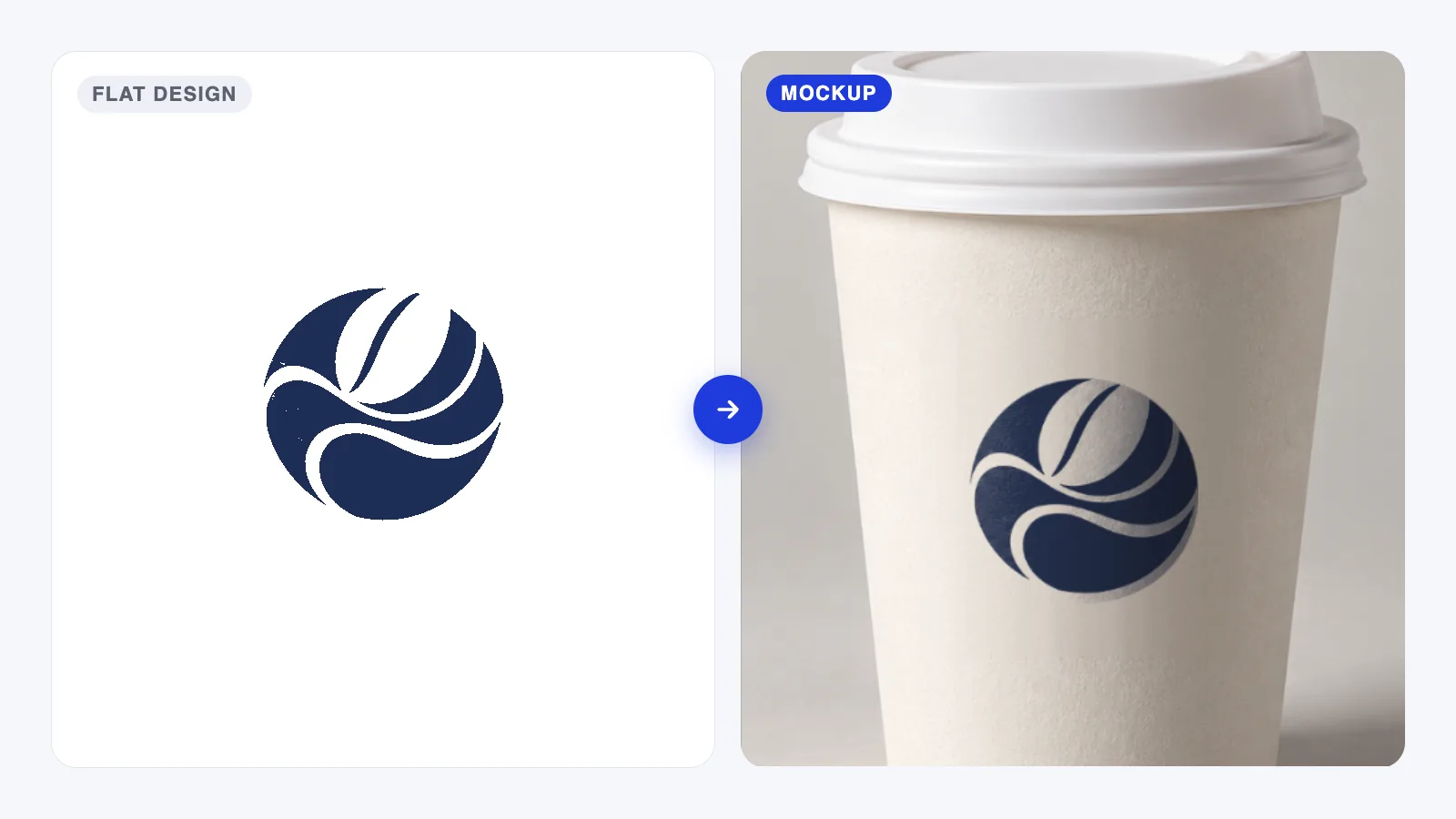
Imagine sending a client their new logo as a PNG on a white background. They like it, but they’re unsure how it will look on their packaging or shop sign. Put that same logo on a few relevant mockups, and they have something more concrete to respond to.
The logo hasn’t changed. The context has. Now the client can picture how they might use it, and the conversation gets easier: is the name readable on the cup? Does it fit the sign? That’s where a mockup helps.
Quick answer: A mockup is a visual preview of a design. It might show a logo on a cup, a label on a jar or the finished appearance of an app screen. Product mockups often use a photo or 3D scene with a placeholder you replace with your artwork.
What is a mockup, exactly?
A mockup is a preview, not the real thing. Someone (usually a designer or photographer) has taken a photo of a blank product, or built one in 3D, and set it up so a design can be dropped onto it. The lighting, shadows, folds and perspective are already there. You only supply the artwork.
The result looks like a product photo, even though the product was never printed.
You’ll often come across these formats:
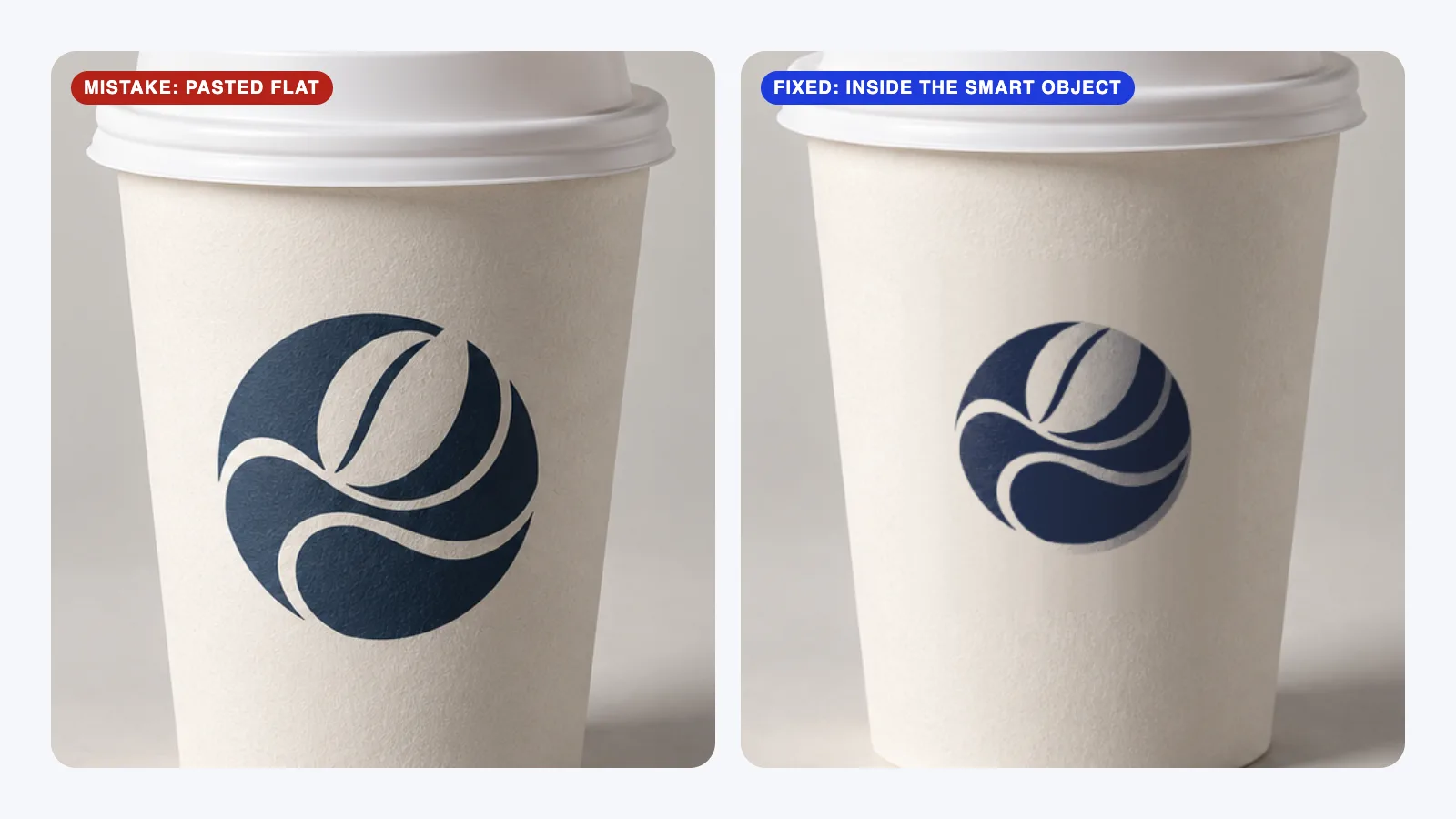
- PSD files for Photoshop, where your design goes inside a smart object. If that sounds unfamiliar, our guide on how to use a PSD mockup in Photoshop walks through it step by step.
- Figma files, mostly for screens: phones, laptops and browser windows.
- Canva templates and online generators, where you upload a logo and the tool places it for you.
Why clients approve designs faster with mockups
A flat file can be hard to picture on a finished product. That applies to anyone reviewing a design, especially when the size, material or setting is unfamiliar.
A mockup gives the conversation a starting point. It helps a client ask more specific questions:
- How big will it look? A logo that feels bold on a monitor can look tiny on a shop window.
- Does it work on the material? Navy ink on kraft paper looks very different from navy on white.
- Does it feel like my brand? Seeing the design in a believable setting helps people react to the brand, not the file.
There’s a practical side too. A label might look balanced as a flat file, then feel crowded when you see it wrapped around a jar. Catching that before ordering 500 labels gives you time to adjust the design. A mockup can help you spot those issues, though you’ll still need a proof to check the actual print.
Mockup vs wireframe vs prototype
These three words come up together in web and app design. They’re useful for different things, and you may move between them as a project develops.
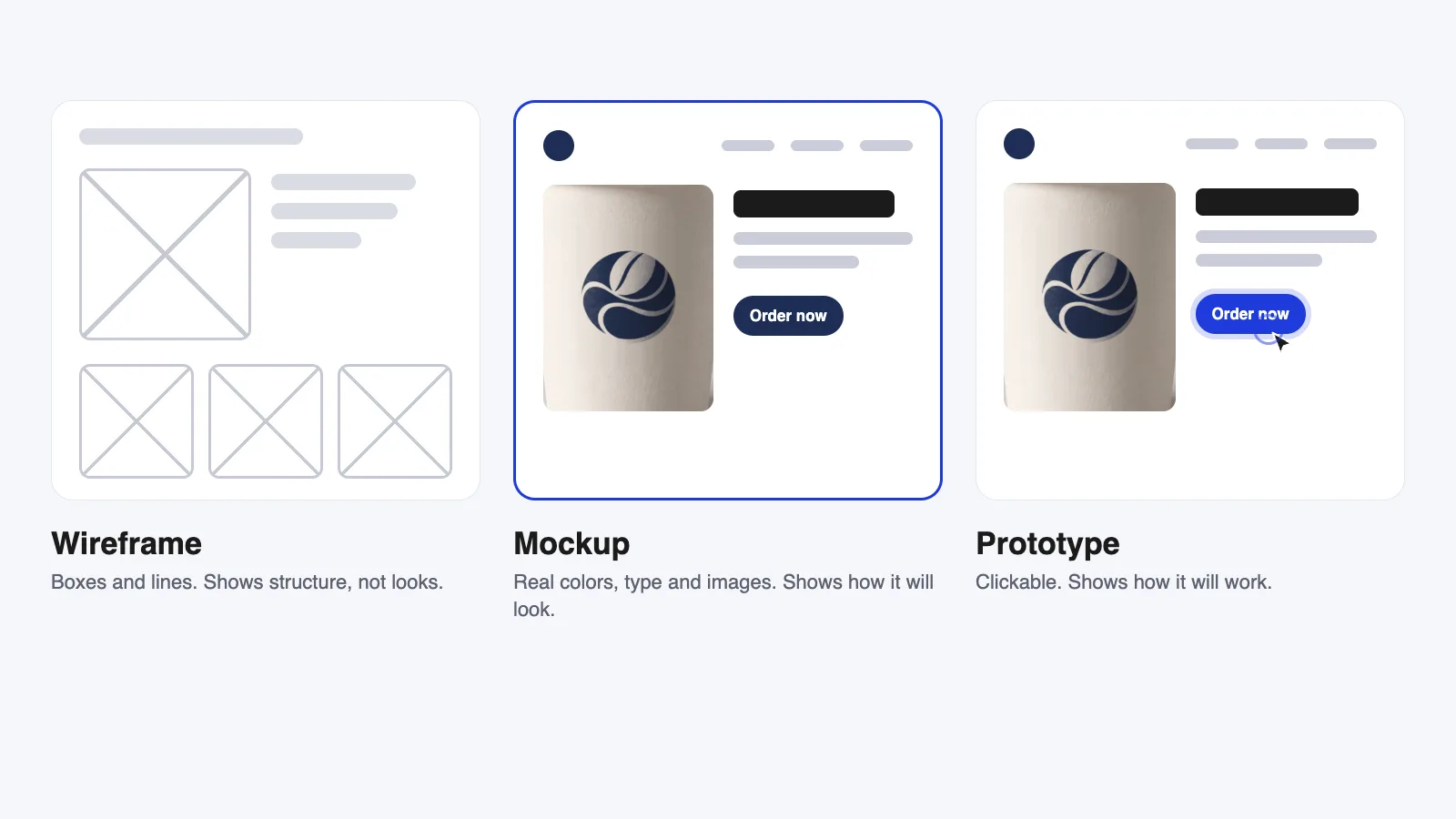
Wireframe: a simplified layout, often made from boxes, lines and text. It shows structure: what goes where on a page. The focus is on content and layout rather than visual styling.
Mockup: a static design with colors, fonts and images. It shows how it will look, including details such as spacing and button styles.
Prototype: a model of the interactions. It shows how it will work: tapping a button might open another screen or reveal a menu. It can be rough or visually polished, depending on what you need to test.
On Mockova, we mostly focus on product mockups: your design on a mug, a t-shirt, a box or a sign.
When should you use a mockup?
Use one any time someone needs to make a decision about a design they can’t yet hold. The most common cases:
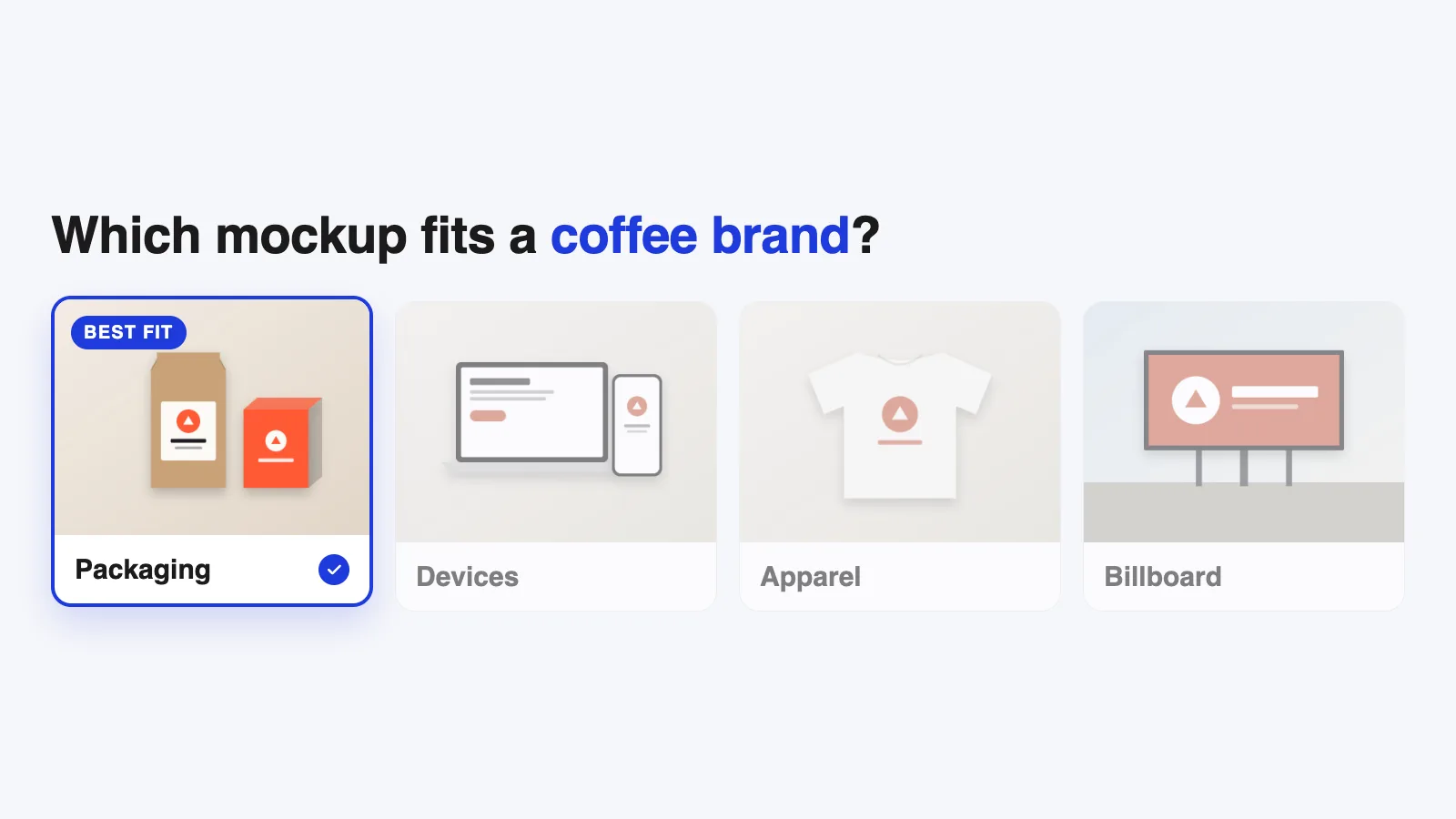
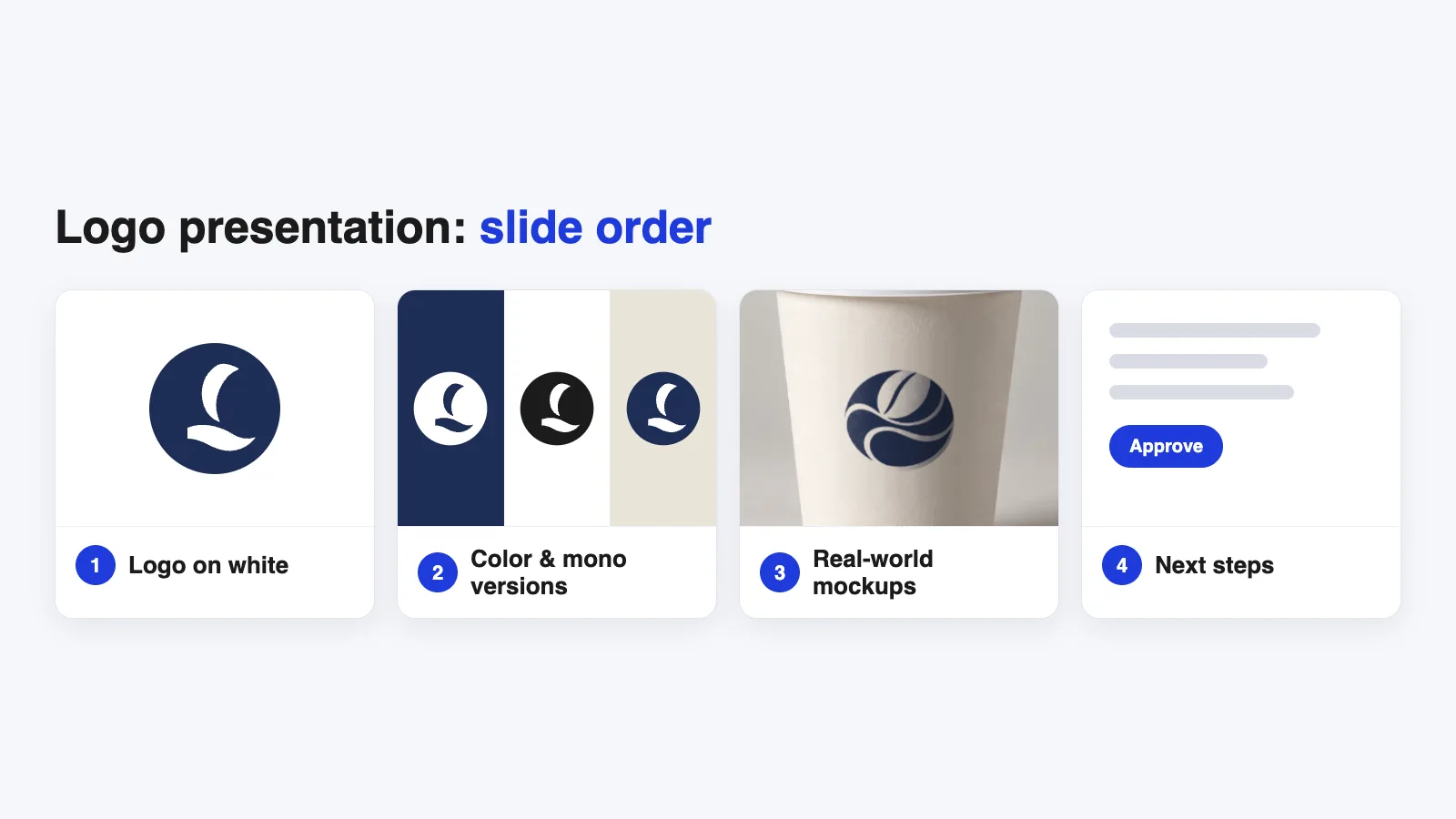
- Logo and brand presentations. Show the logo in two or three settings that match the client’s business. A bakery wants to see boxes and bags, not a billboard.
- Packaging and labels before printing. Preview readability and placement on the product shape, then check the print with a physical proof.
- Online shops. Print-on-demand and Etsy sellers use mockups as product photos for items that are only made after someone orders.
- Portfolios. A case study with a few good mockups is easier to understand than a page of flat files.
- App and website pitches. A screen on a phone in someone’s hand makes an idea feel real before it’s built.
When a mockup isn’t enough
A mockup is a convincing picture, and that’s also its limit.
It won’t show the exact color your printer will produce. A screen preview can differ from the printed result, so ask for a printed proof when color matters. It won’t show texture you can feel, like embossing or soft-touch paper. And a mockup with the wrong angle or lighting can mislead as much as it helps.
A useful rule: use mockups to review the direction, then use a physical proof to check production details before committing to a print run.
FAQ
Is a mockup the same as a template?
Close, but not quite. A mockup template is the file you start with: the blank product scene with a placeholder. The mockup is the finished image after you’ve added your design.
Do I need Photoshop to make a mockup?
No. Photoshop gives you detailed control over PSD mockups. Figma is useful for screen designs, while Canva and online generators offer a simpler way to create product previews. Photopea is another option for editing PSD files in a browser, though some effects may render differently.
Are mockups free to use?
Many are, but “free” doesn’t always mean free for client or commercial work. Each creator sets their own license, so check it on the creator’s page before using a mockup in paid projects.
What’s the difference between a mockup and a product photo?
A product photo shows a real, finished product. A mockup shows a design on a product that may not exist yet. Done well, they can look the same, which is exactly why mockups are so useful before printing.
Your next step
Pick one design you’re working on right now and put it on a single, simple mockup: a cup, a box or a phone screen. Then follow our Photoshop walkthrough to place your artwork without breaking the file. Start with that one example. Finding the editable layer and seeing your design in place makes the basic process easier to understand.