Common Mockup Mistakes That Make Your Work Look Cheap
Mockup mistakes that make good designs look cheap: flat pasted logos, wrong scale, mismatched light, overused scenes and low resolution, and how to fix them.
By Mockova Team4 min read
A great design can look cheap in a bad mockup. The logo floats above the cup. The label is the size of a postage stamp. Every portfolio piece sits on the same marble table with the same sprig of eucalyptus.
None of these are design problems. They’re presentation problems, and most of them take a minute to fix once you know what to look for.
Quick answer: The most common mockup mistakes are pasting artwork on top instead of inside the smart object, using the wrong scale, ignoring the product’s lighting and material, using low-resolution files, and relying on overused scenes. Place designs inside the smart object, match real product sizes, keep the shadow layers on top, and choose scenes that fit the brand.
1. Pasting the design on top
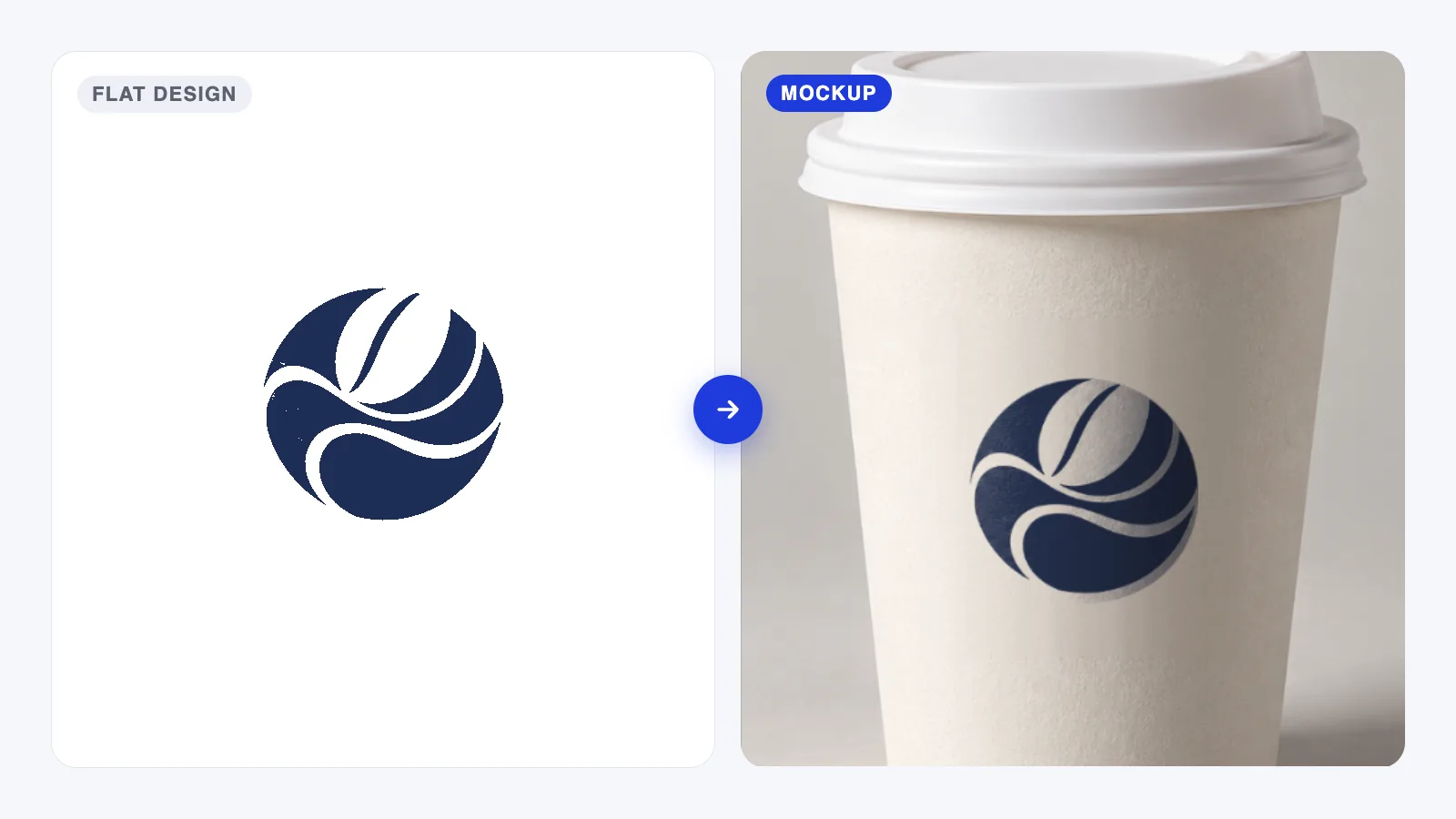
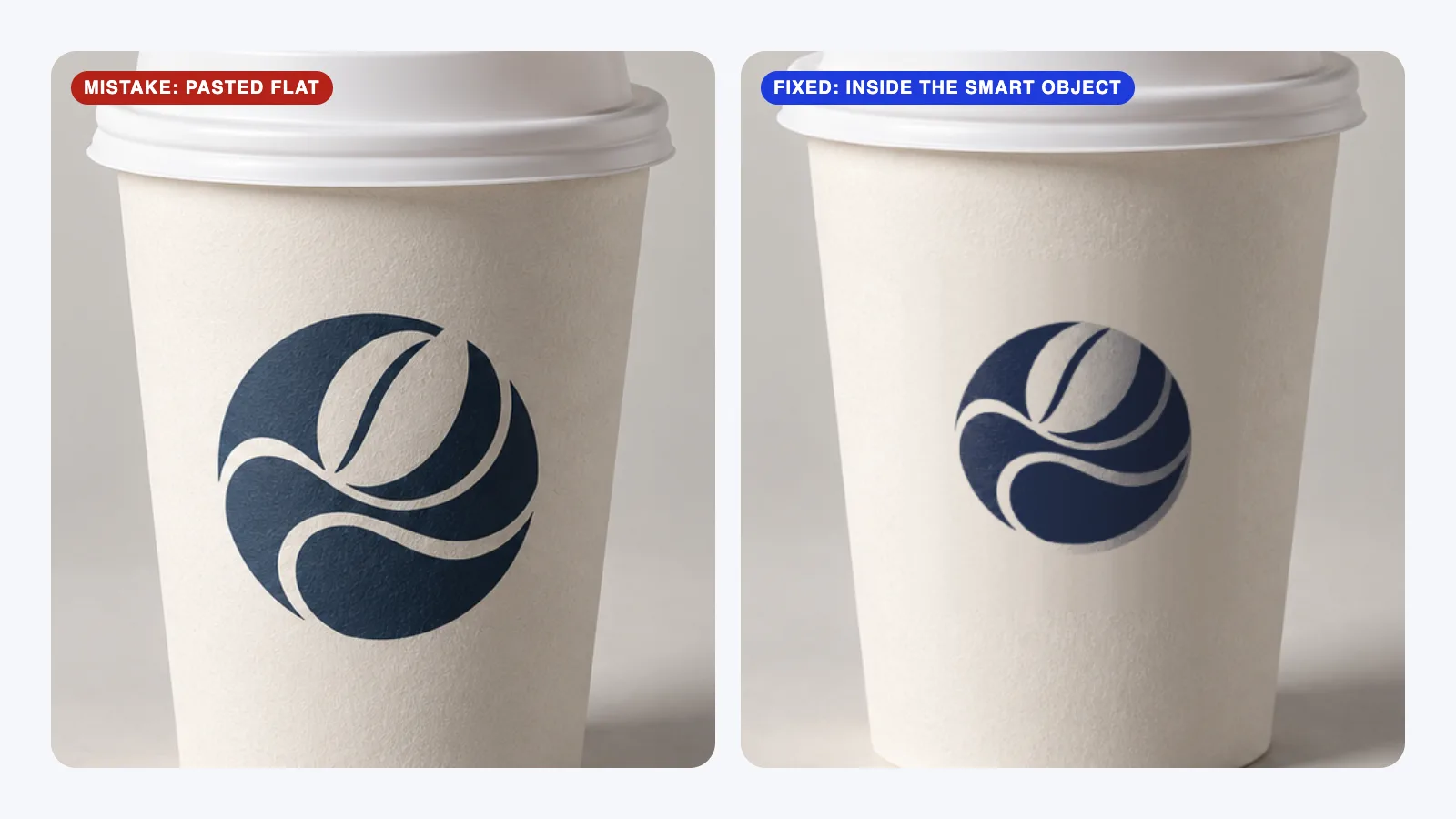
This is the big one! If you paste your logo directly onto the mockup instead of inside the smart object, it sits flat on the surface. It ignores the curve, the shadows and the texture, and it looks like a sticker on a photo.
Fix: double-click the smart object’s thumbnail, place your design inside the file that opens, save, and close. Our PSD mockup guide walks through it step by step.
2. Getting the scale wrong
A logo that covers the entire front of a mug, or a label so small you can’t read it, instantly feels fake. People know roughly how big things are in real life.
Fix: use real print sizes where you can. A logo on a coffee cup is often around 5–7 cm wide. On a business card, text below about 7 pt gets hard to read. When in doubt, look at a real product photo and compare.
3. Ignoring the lighting and material
A bright neon logo on a moody, dimly lit scene looks pasted on, even inside a smart object. So does a crisp white logo on kraft paper, where real ink would soak in and look softer.
Fix: keep the mockup’s shadow, highlight and texture layers above your design. If your artwork looks too bright, lower the opacity of the highlight layer slightly rather than deleting it. And pick a mockup whose material matches the real product.
4. Using low-resolution files
A stretched 600 px logo or a small free mockup scaled up for a big screen gives you soft, fuzzy edges, and clients notice on large monitors.
Fix: place vector logos (AI, SVG or PDF) or artwork at least as large as the smart object, and choose mockups at least 2000 px wide for anything a client will zoom into. If something already looks soft, our guide to fixing a blurry mockup covers every cause.
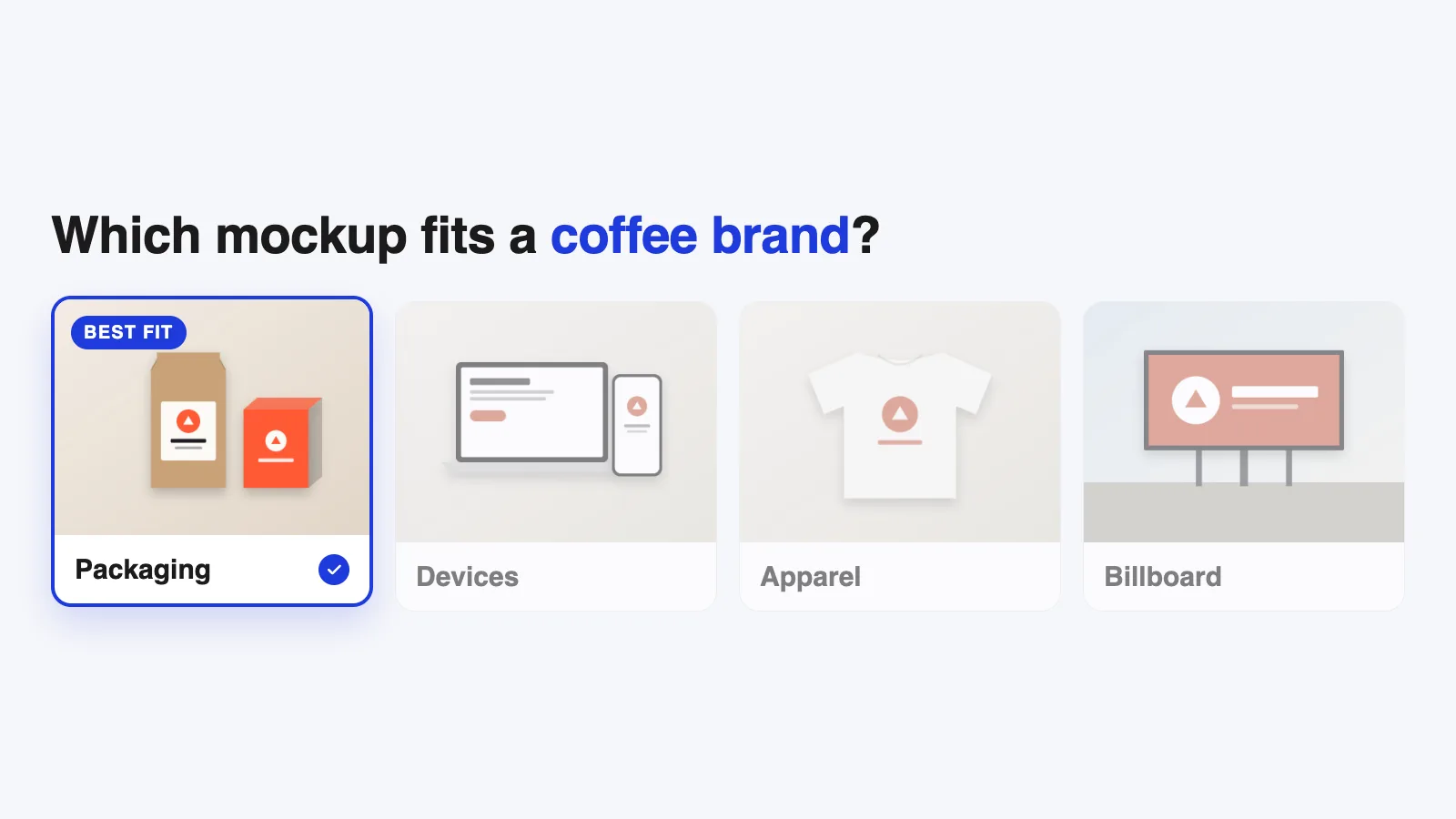
5. Choosing scenes that don’t fit the brand
A rustic bakery on a sleek tech desk. A corporate law firm on a pastel flat lay with flowers. The scene says something about the brand, and the wrong scene says the wrong thing.
Fix: ask where the client’s customers will see the design first, and start there. Plain, quiet scenes are safer than clever ones.
6. Using the same overused scenes
Some free mockups are everywhere. Clients who browse design portfolios may recognize them, and it makes the work feel less tailored.
Fix: use less common angles, change the background color, or crop tighter. Even small changes make a familiar scene feel like your’s.
7. Leaving placeholder content
Dummy Latin filler text on a letterhead, “John Doe, CEO” on a business card, a default phone screen behind your app. These slip through more often then you’d think.
Fix: before exporting, check every visible surface: the back of the box, the side of the bag, the screen of every device. Replace placeholders with realistic copy.
8. Showing too many mockups
Twelve mockups for one logo doesn’t look generous. It looks like you couldn’t decide what mattered.
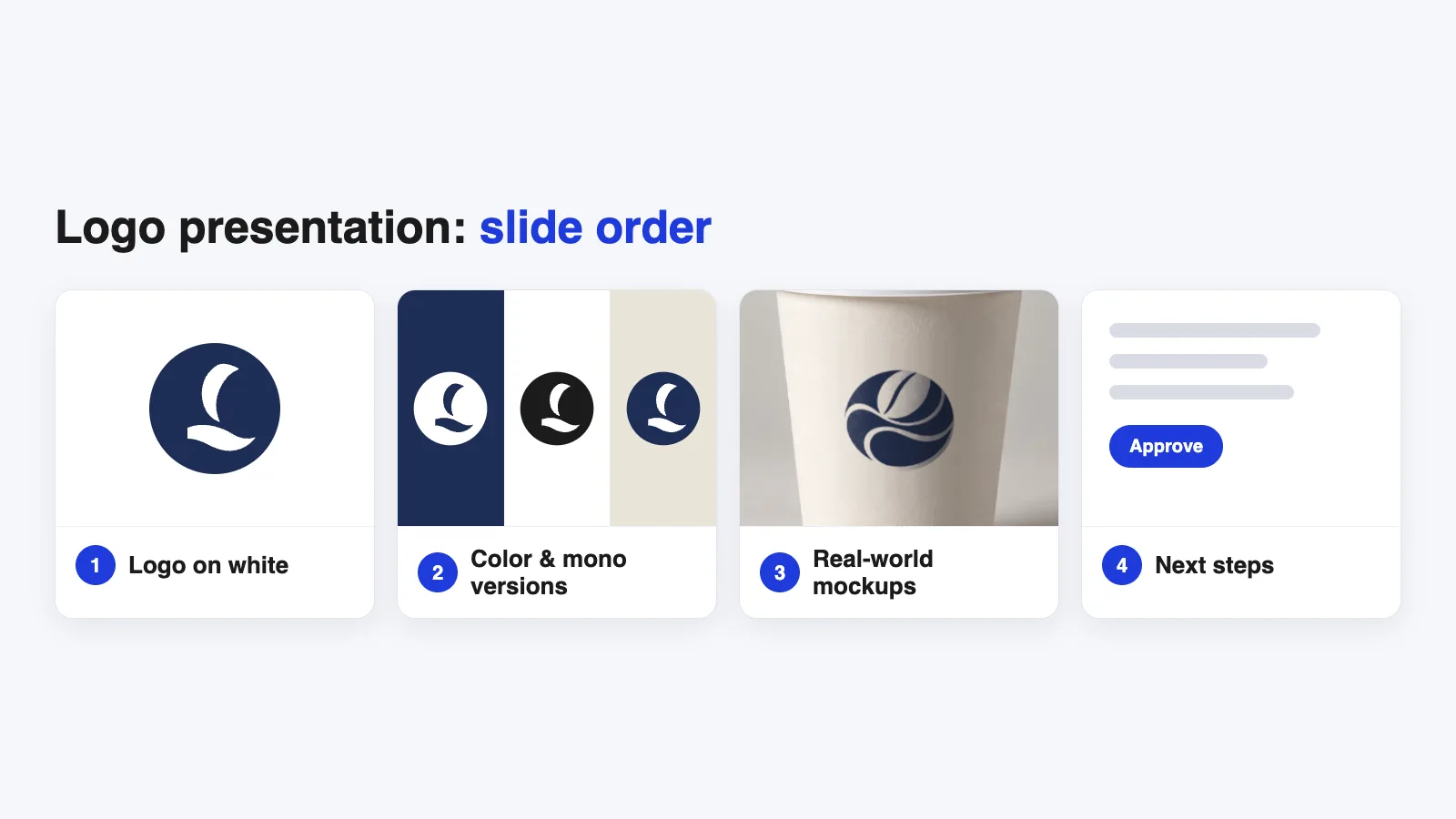
Fix: three or four strong scenes per concept. Our guide to presenting a logo to a client explains the order that works.
A 60-second check before you export
- Is the design inside the smart object, following the surface?
- Is the size realistic?
- Are the shadow and texture layers still on top?
- Is it sharp at 100% zoom?
- Does the scene fit the brand?
- Is every placeholder replaced?
FAQ
Why does my logo look fake on the mockup?
Usually because it’s pasted on top instead of inside the smart object, or because the shadow and texture layers were hidden. Place it inside the smart object and keep the effect layers visible.
How big should a logo be on a mockup?
As big as it would be on the real product. Check real product photos or print specs, and avoid filling the whole surface unless the real design does.
Are free mockups more likely to look cheap?
Not necessarily. A well-chosen free mockup can look great. Problems usually come from low resolution, overused scenes or missing layers, so check those before you download.
Your next step
Open your last finished mockup and run the 60-second check above. Chances are at least one thing jumps out, and fixing it will take less time than reading this post did.