How to Fix a Blurry Design in a Mockup
Blurry mockup? Fix soft, pixelated designs in Photoshop by checking artwork size, smart object resolution, placement and export settings, step by step.
By Mockova Team5 min read
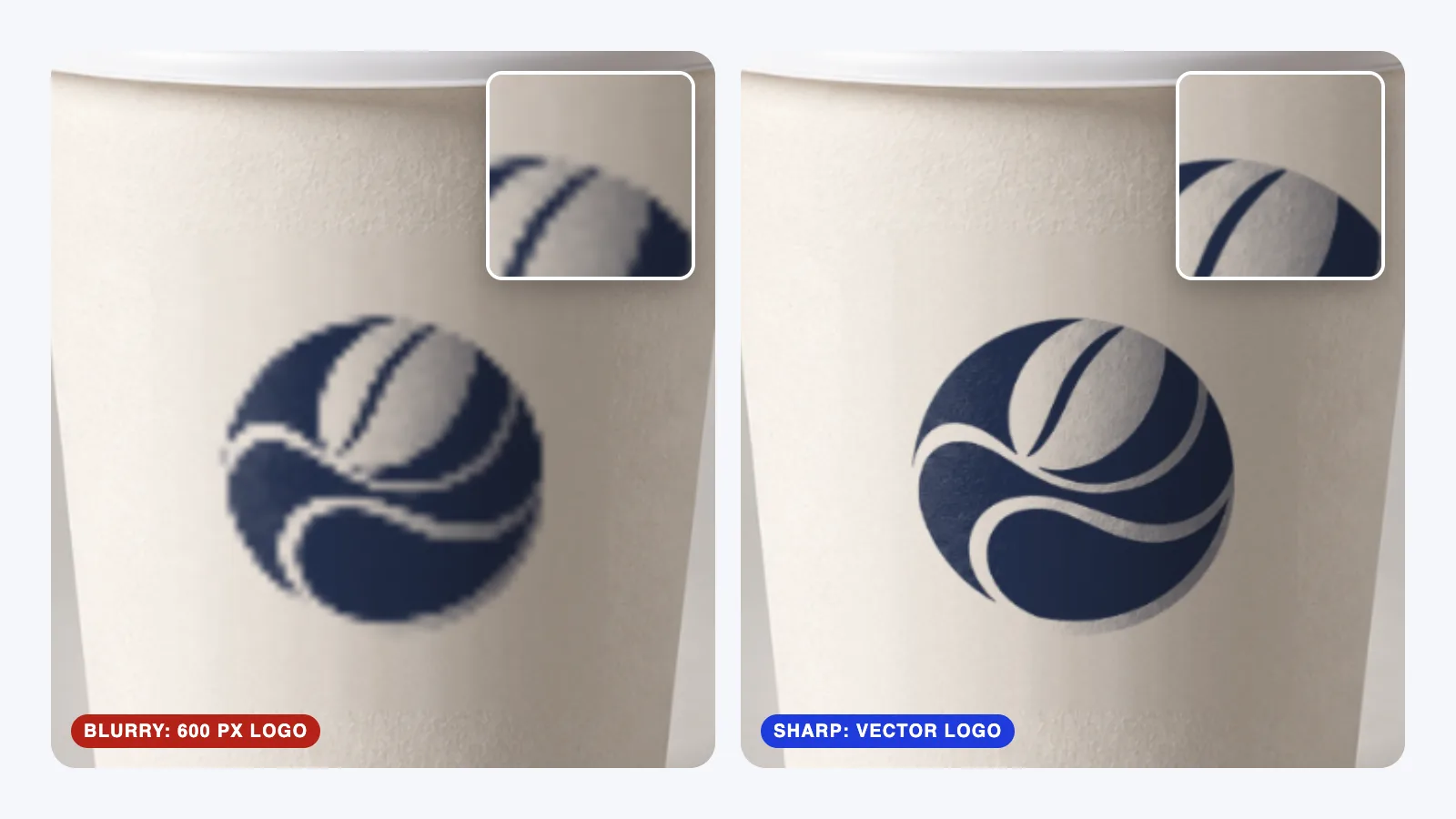
Your logo looks crisp in Illustrator. You place it in a mockup, zoom in to check, and the edges are soft and fuzzy. You export it anyway and on the clients big monitor it looks even worse.
A blurry mockup almost always comes down to one of a few causes. Work through them in order and you’ll usually find the problem in a couple of minutes.
Quick answer: A blurry mockup is usually caused by artwork that’s smaller than the smart object it’s placed in, so Photoshop stretches it. Open the smart object, check its canvas size, and replace your design with a vector file (AI, SVG or PDF) or an image at least as large as the canvas. Then check the export settings and the size of the mockup itself.
First, check it at 100% zoom
Before you fix anything, make sure it’s actually blurry. Photoshop’s preview at odd zoom levels (like 33% or 66.7%) can make sharp edges look soft.
Choose View > 100% (or press Cmd+1 on Mac, Ctrl+1 on Windows) and look at the design again. If it’s sharp at 100%, there’s nothing to fix in the file. Check your export instead, further down.
Cause 1: your artwork is smaller than the smart object
This is the cause most of the the time.
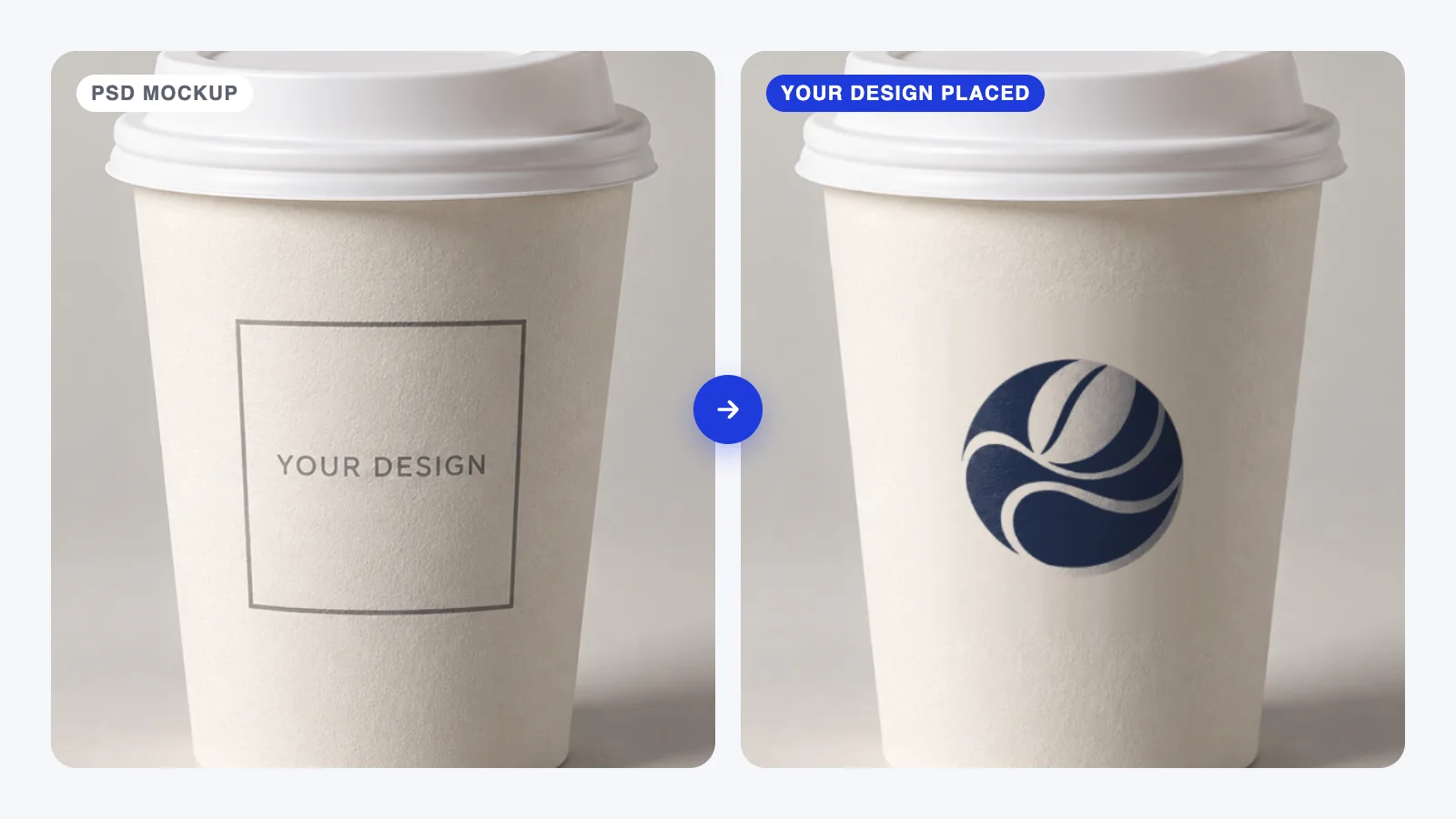
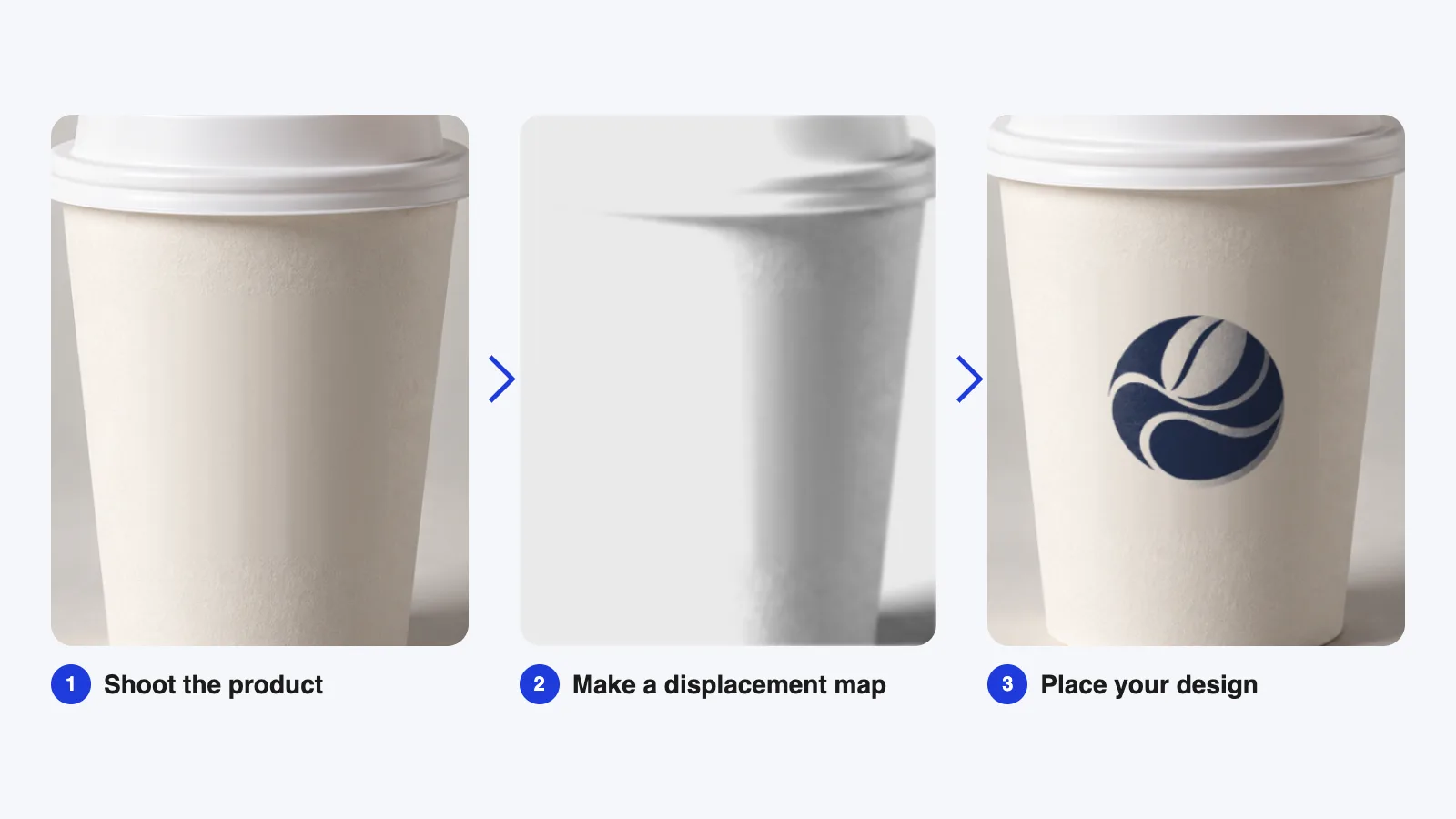
Every mockup has a smart object, the “Your Design Here” layer. Inside it is a canvas with a fixed size, often 2000–4000 px wide. If you place a 600 px logo and scale it up to fill a 3000 px canvas, Photoshop has to invent the missing pixels. The result looks soft, and you can’t sharpen your way out of it.
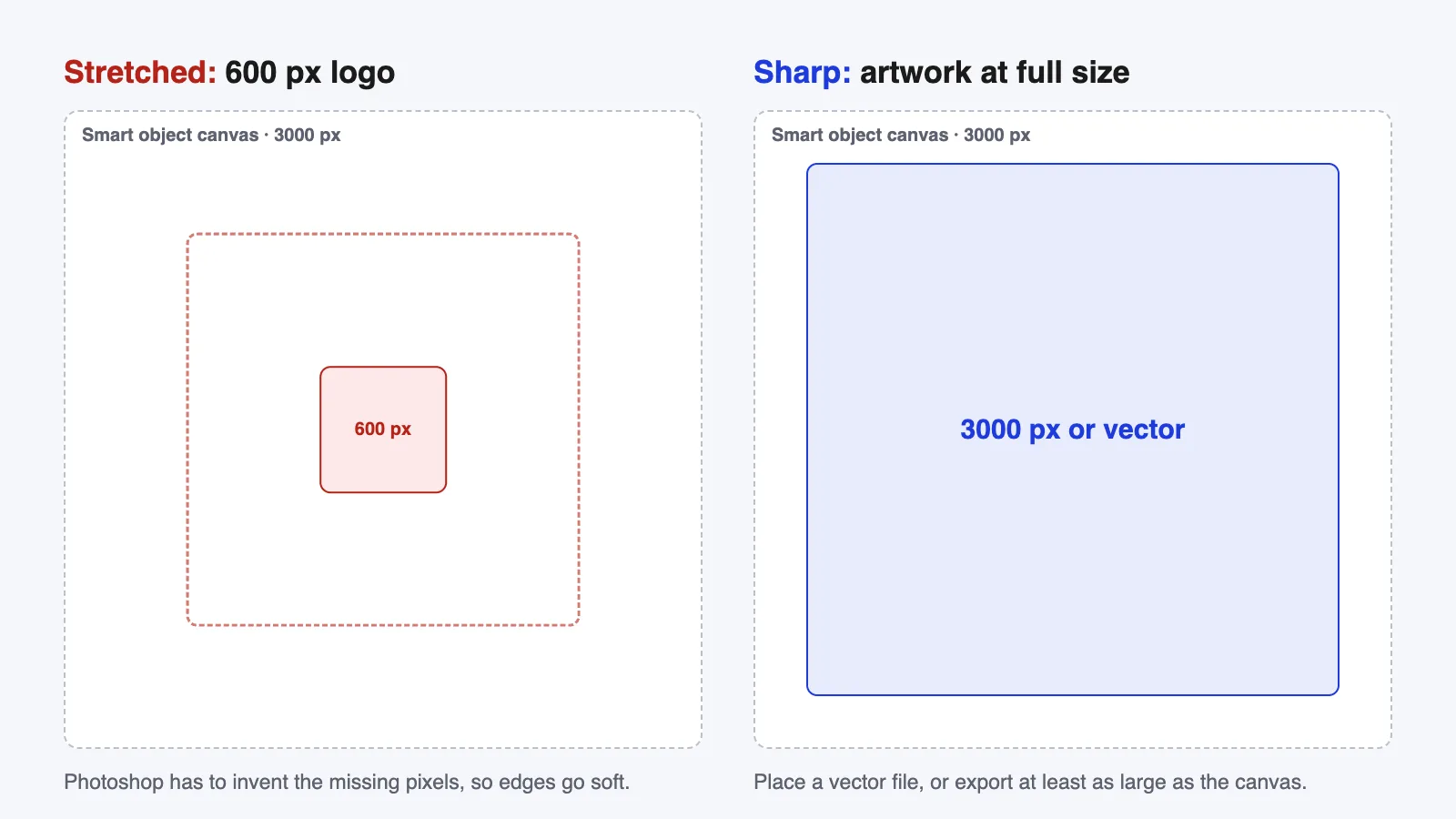
How to check: double-click the smart object’s thumbnail to open it, then choose Image > Image Size. Note the width and height. Now compare them with your artwork. (If you’re not sure which layer is the smart object, our guide to using a PSD mockup shows how to find it.)
How to fix it:
- Inside the smart object, delete or hide the stretched artwork.
- Choose File > Place Embedded and place a vector file (AI, SVG or PDF) if you have one. Vectors stay sharp at any size, so this solves the problem for good.
- No vector? Export a PNG from your design app at least as large as the smart object canvas, with a transparent background.
- Save the smart object (Cmd+S / Ctrl+S) and go back to the mockup.
For logos, always use the vector file. It takes the same effort and you’ll never have to think about this problem again.
Cause 2: you pasted a screenshot or a web image
Screenshots and images saved from websites are usually small and compressed. They might look fine on screen at normal size, but they don’t hold up when a mockup enlarges them.
Go back to the original design file and export from there. If a client sent you a logo from their website, ask for the original artwork. Its worth the email.
Cause 3: the artwork was resized several times
Each time you scale a pasted image down and then up again, it loses detail. Do this a few times inside a smart object and the design gets softer every round.
The fix is to start clean: delete the layer, place the original file once, and resize it in one go. If you placed it with Place Embedded, it becomes its own smart object and keeps its quality when you resize it.
Cause 4: the mockup itself is low resolution
Sometimes your artwork is fine and the mockup is the problem. Many free mockups are only 1500–2000 px wide. Check the main document with Image > Image Size.
If the mockup is smaller than the image you need, enlarging it won’t add detail. Your options are to use the mockup at its real size or choose a higher-resolution mockup. For anything a client will zoom into, skip mockups under about 2000 px wide.
Cause 5: export settings
If the file looks sharp at 100% in Photoshop but blurry after export, check how you saved it.
Choose File > Export > Export As and look at:
- Image size: keep it at 100% scale, or set the exact width you need. Exporting at 50% halves the detail.
- Format: PNG for crisp graphics and presentations. JPG at high quality (around 80–90%) for photos and social media.
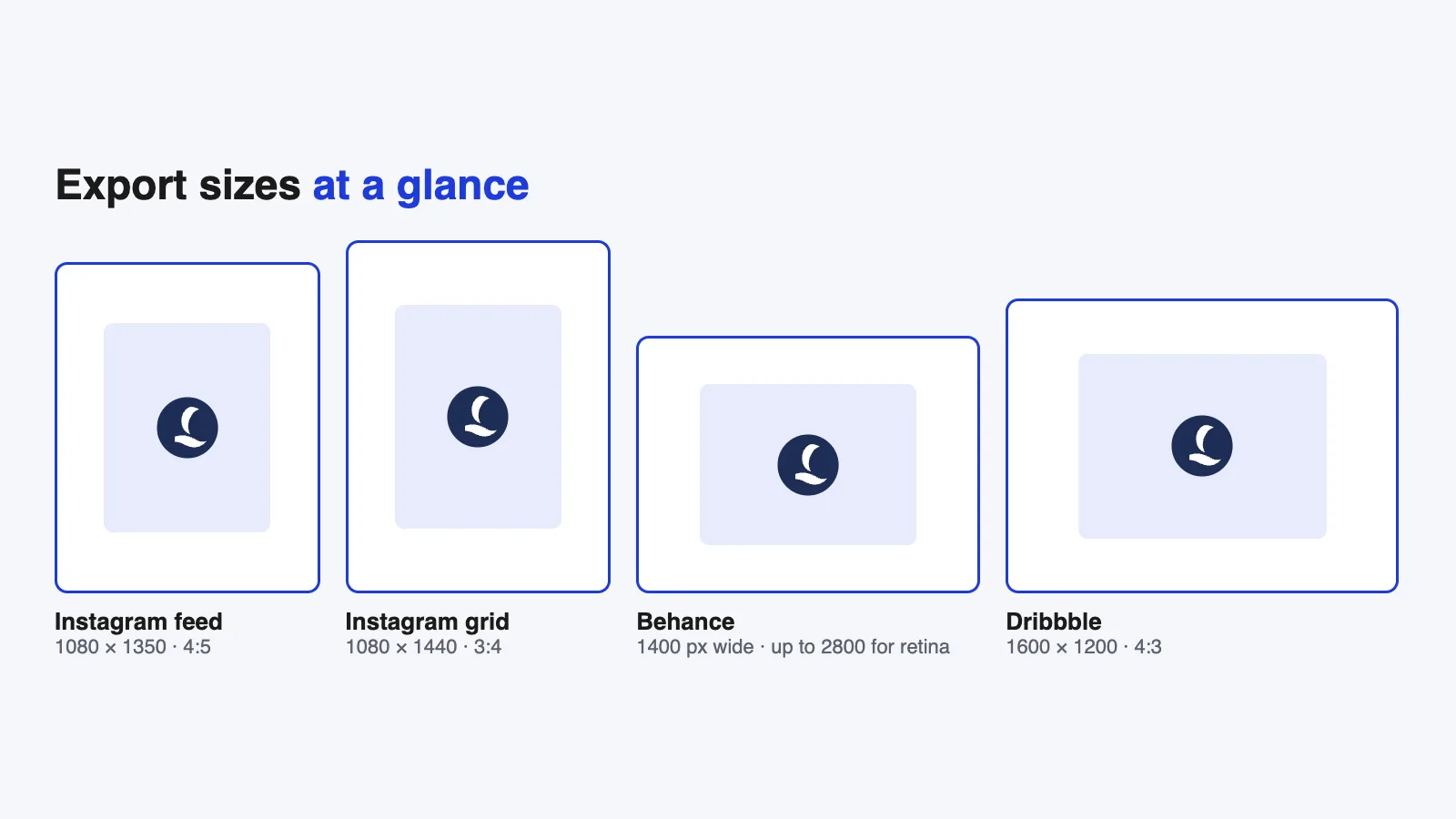
- Platform compression: some sites, social networks especially, recompress your upload. Exporting at their recommended size reduces how much they change it.
A quick checklist
When a mockup looks blurry, check in this order:
- Is it still blurry at 100% zoom?
- Is the artwork as large as the smart object canvas, or a vector?
- Did you use the original file, not a screenshot?
- Was the artwork resized only once?
- Is the mockup itself big enough?
- Are the export settings keeping full size and quality?
FAQ
Can I sharpen a blurry design in Photoshop?
Sharpening filters like Unsharp Mask can make edges look a little crisper, but they can’t add real detail. If the artwork is too small, replace it with a larger file or a vector instead.
What size should my logo be for a mockup?
At least as large as the smart object’s canvas. Better still, use a vector file (AI, SVG or PDF), which stays sharp at any size.
Why is my mockup sharp in Photoshop but blurry on Instagram?
Social platforms compress images when you upload them. Export at the platform’s recommended size, crop to its aspect ratio first, and avoid uploading very large or very small files.
Does placing a file as a smart object keep it sharp?
Yes, as long as the original is big enough or a vector. File > Place Embedded creates a smart object that keeps the original data, so resizing doesn’t degrade it the way repeated resizing of a pasted image does.
Your next step
Open the last mockup that came out soft, check the smart object size, and replace the artwork with your vector logo. If you’re choosing a new mockup, our guide to choosing the right mockup includes a resolution check so you avoid the problem from the start.