How to Make Your Own Mockup from a Photo
Make your own mockup from a product photo: shoot it on your phone, build a displacement map, set up a smart object and save a reusable Photoshop template.
By Mockova Team4 min read
Sometimes the mockup you need doesn’t exist. Your client sells an unusual bottle, a handmade candle, a jar with an odd lid. Or you’re tired of using the same scenes as everyone else.
You can make your own. With a phone camera, a blank product and Photoshop, you can build a mockup that’s completely unique, and reuse it as many times as you like.
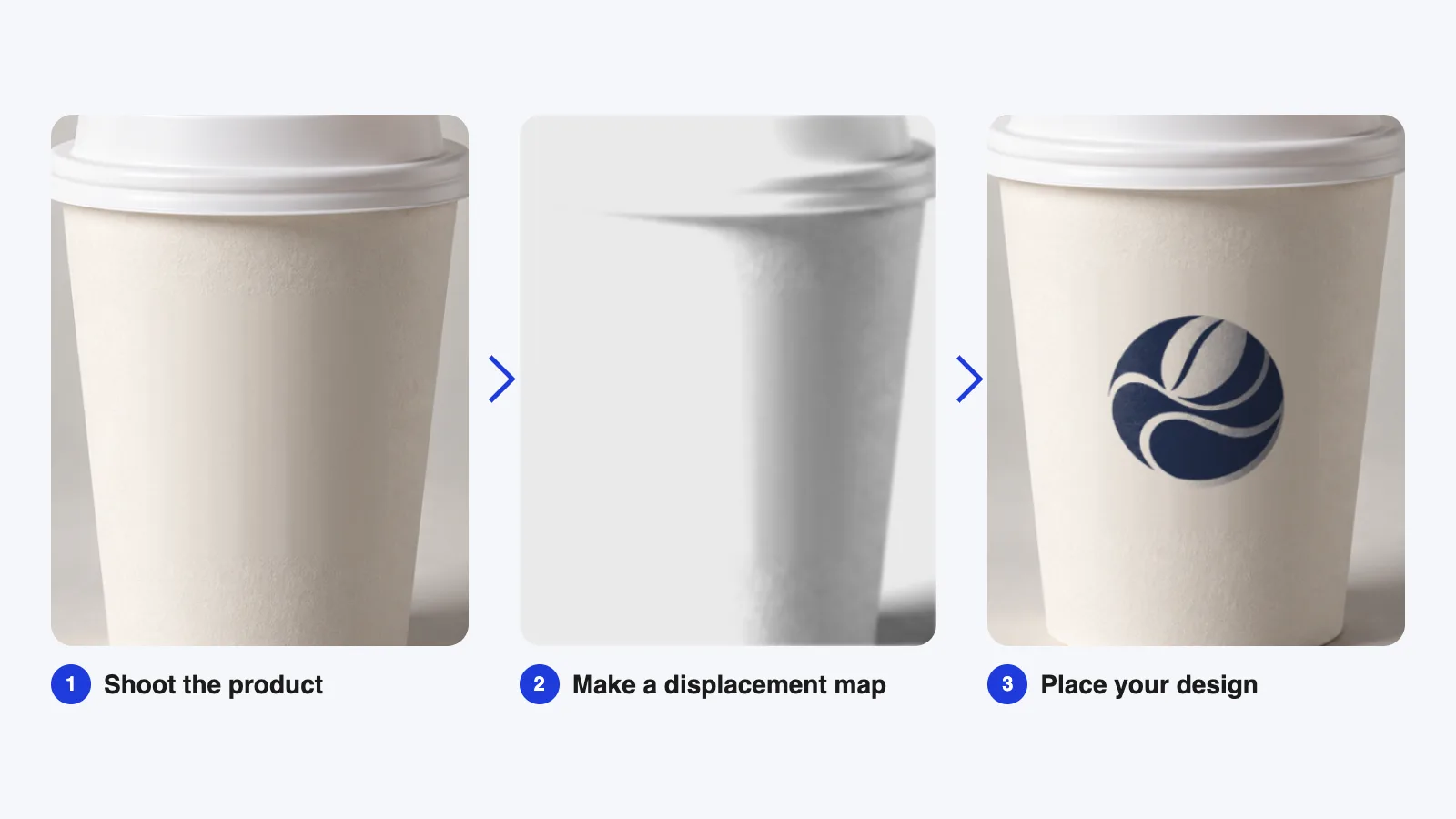
Quick answer: Photograph the blank product in soft, even light. In Photoshop, make a grayscale copy of the photo and save it as a displacement map. Draw the design area, convert your artwork into a smart object, apply Filter > Distort > Displace with the map, and set the design layer to Multiply so the photo’s texture and shadows show through. Save the file as a PSD template.
Step 1: Pick the product and the light
Choose a plain, blank version of the product: a white mug, an unprinted box, a blank tote bag. Wipe off dust and fingerprints. They show up more than you’d expect
Light matters more then the camera:
- Soft, even light from a window on a cloudy day is perfect. Avoid direct sun and harsh shadows.
- A plain background like a wall, a sheet of card or a wooden table keeps the scene clean.
- One light direction makes the result look natural.
Step 2: Shoot the photo
A recent phone camera is fine. A few tips:
- Shoot at the highest resolution your phone allows, with no filters.
- Keep the camera steady. Rest it on something or use a small tripod.
- Take several angles: straight-on (best for detail) and slightly angled (better for mood).
- Fill most of the frame with the product, leaving some space around it for cropping later.
Pick the sharpest photo and open it in Photoshop.
Step 3: Clean up the photo
Use the Spot Healing Brush to remove dust, scratches or labels. Adjust Levels or Curves so whites look clean but not blown out. Crop to the final shape you want.
This is your base layer. Keep it, and work on copies from here on.
Step 4: Make a displacement map
A displacement map tells Photoshop how to bend your design so it follows the surface: the curve of a mug, the folds of fabric.
- Duplicate the photo layer.
- Choose Image > Adjustments > Black & White (or Desaturate) to make it grayscale.
- Add a little Gaussian Blur (around 2–4 px) so tiny details don’t distort your design.
- Increase the contrast slightly with Levels.
- Copy that layer into a new document and save it as a PSD called something like
displacement-map.psd.
Light areas push the design one way and dark areas the other, which is what makes it look wrapped around the shape.
Step 5: Set up the design area
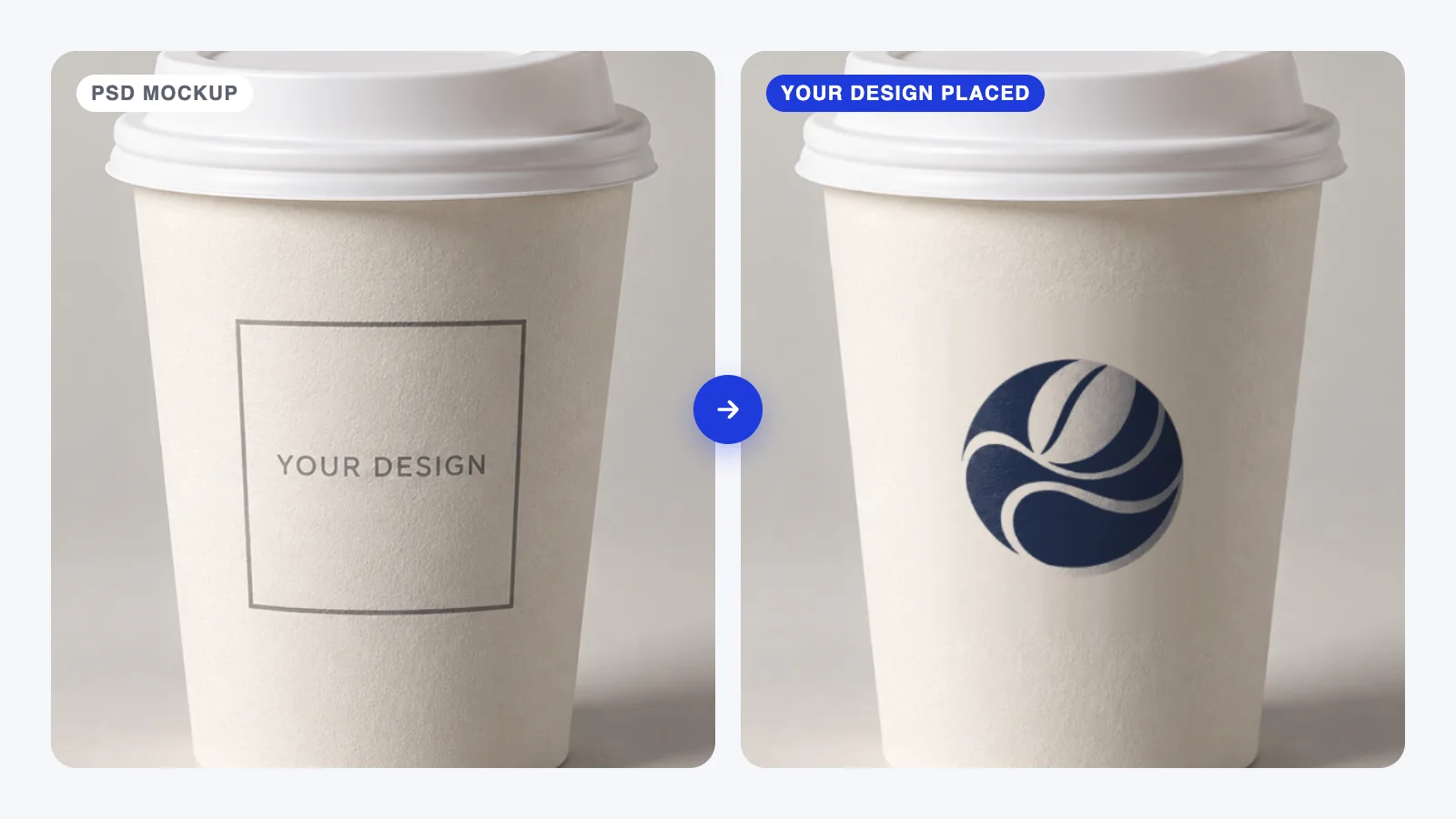
- Place a placeholder design (a simple logo or text) on a new layer above the photo.
- Right-click the layer and choose Convert to Smart Object.
- Use Edit > Transform (Perspective, Warp or Distort) to fit it onto the product’s surface. For a cup, a gentle Warp with the Arc option often works well.
Step 6: Apply the displacement
With the smart object selected, choose Filter > Distort > Displace. Start with small values (around 5–10 for both scales) and pick your displacement-map.psd file when asked.
Because it’s a smart object, the filter stays editable. You can double-click it to adjust the strength later.
Step 7: Make it look printed
Set the design layer’s blend mode to Multiply (or Linear Burn for darker designs). The photo’s shadows and texture now show through the artwork, so it looks printed rather than pasted.
For extra realism, duplicate the original photo, desaturate it, set it to Overlay or Soft Light above the design, and lower the opacity until the highlights look natural.
Step 8: Save it as a reusable template
- Rename the smart object layer to “Your Design Here”.
- Group the effect layers and name them clearly.
- Save the file as a PSD template.
Next time, double-click the smart object, swap in a new design, save, and the whole mockup updates. Thats exactly how professional mockups work. If you haven’t used one before, see our guide to using a PSD mockup in Photoshop.
FAQ
Do I need a professional camera?
No. A recent phone camera in good light is enough for most mockups. Light and a clean product matter far more than the camera.
Why does my design look flat on my own mockup?
Usually the displacement is too weak, or the blend mode is still Normal. Try slightly higher displacement values and set the design layer to Multiply.
Why does my design look blurry?
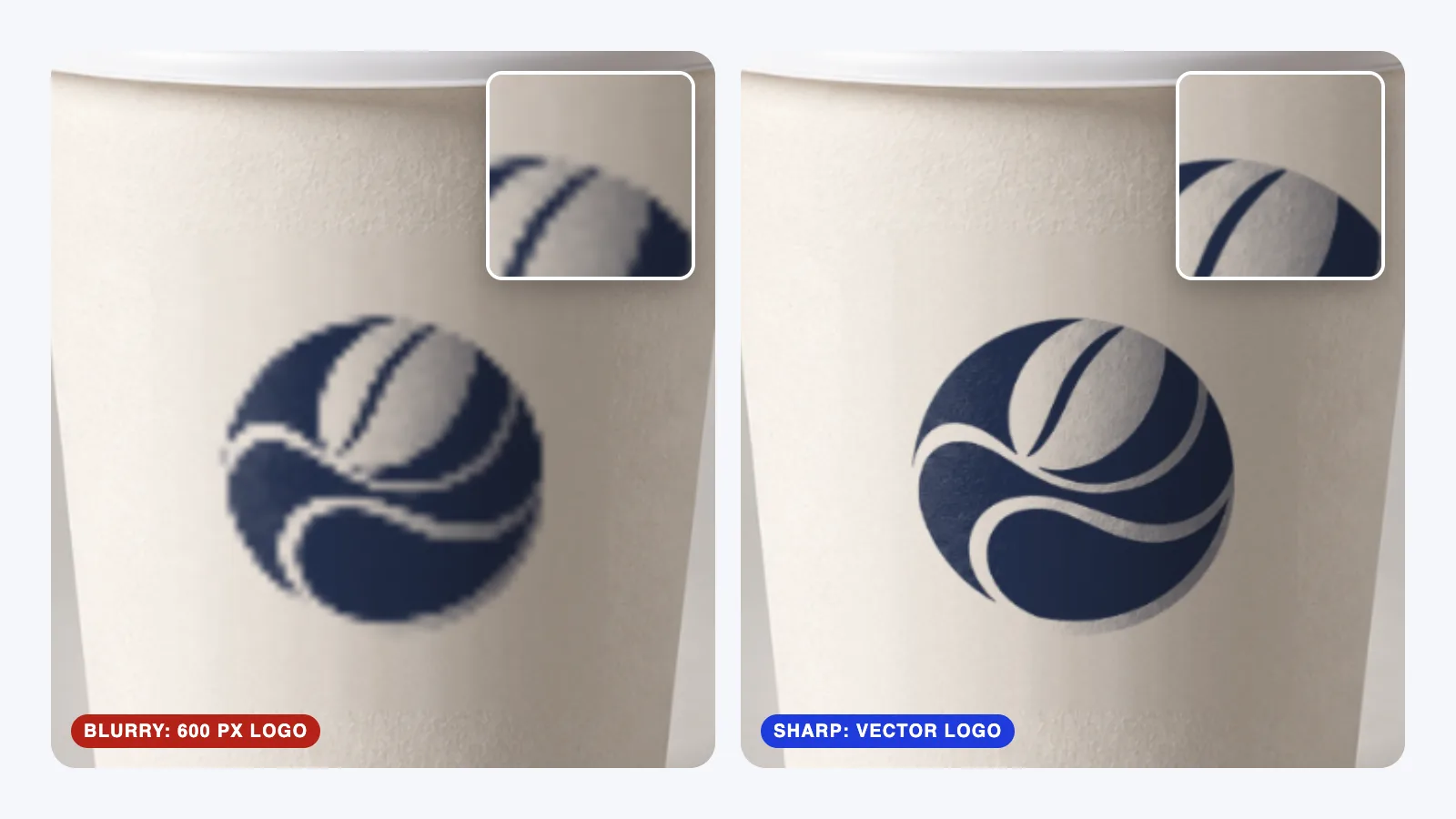
The artwork inside the smart object may be too small, or the displacement too strong. See our guide to fixing a blurry mockup.
Can I sell mockups I make myself?
If you took the photo of a product you own, generally yes. Avoid recognizable brands and logos in the photo, and don’t use images you don’t have the rights to.
Your next step
Find one plain object on your desk (a mug, a notebook, a box) and photograph it by a window today. Building your first mockup takes about half an hour, and you’ll understand every mockup you download afterwards.