How to Export Mockups for Instagram, Behance and Dribbble
Mockup export sizes for Instagram, Behance and Dribbble: dimensions and formats to use, cropping without losing the design, and Photoshop export settings.
By Mockova Team4 min read
Your mockup looks perfect in Photoshop. You post it on Instagram, and the top of the logo is cropped off in your profile grid. You upload it to Behance, and it looks slightly soft. You share it on Dribbble, and there’s an awkward gap around it.
Each platform shows images a little differently. Export the right size for each one and your work looks as sharp as it does on your screen.
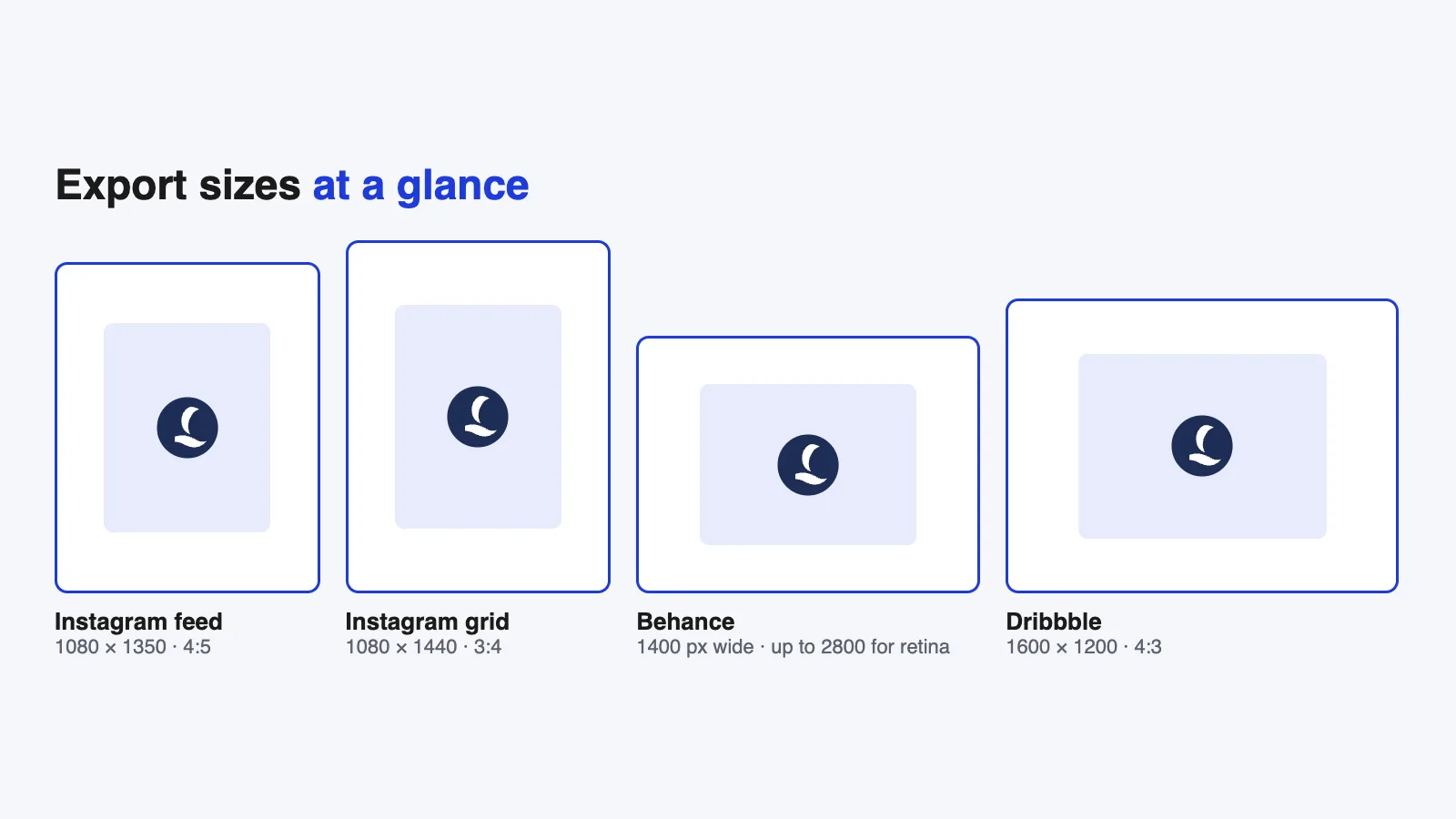
Quick answer: For Instagram feed posts, export at 1080 × 1350 px (4:5), or 1080 × 1440 px (3:4) to match the profile grid. For Behance project images, use 1400 px wide, or up to 2800 px for sharper display on high-resolution screens. For Dribbble, a 1600 × 1200 px (4:3) canvas is a safe size. Export JPG at high quality for photos, PNG for crisp graphics.
Platform sizes change from time to time, so treat these as current guidelines and check each platform’s help pages if something looks off.
Feed posts: 1080 × 1350 px (4:5) is the safe default. It’s tall, takes up more of the screen than a square, and works everywhere, including if you later boost the post as an ad.
Matching the profile grid: Instagram’s profile grid now shows taller 3:4 previews. If your grid matters most, you can post at 1080 × 1440 px (3:4) so nothing gets cropped in the grid. If you post at 4:5, keep important details away from the far left and right edges, because the grid trims a little from the sides.
Tips:
- Center the product, and leave breathing room around it.
- Avoid tiny text. People see your post on a phone.
- Use a JPG at high quality. Instagram compresses everything anyway.
Behance
Behance project images display at around 1400 px wide. Uploading wider images, up to about 2800 px, keeps them crisp on high-resolution screens and in the full-size view.
For the project cover, a 4:3 image works well (for example 1400 × 1050 px). Make sure the main mockup is clearly visible even when the cover is shown small in a grid of projects.
Tips:
- Use the same width for every image in a project so they line up neatly.
- Mix wide overview mockups with closer crops of the details.
- Use JPG for photographic mockups and PNG for flat, graphic images.
Dribbble
For Dribbble shots, a 1600 × 1200 px (4:3) canvas is a safe working size. Some designers export larger, at the same 4:3 ratio, for extra sharpness.
Tips:
- Dribbble is about one idea per shot really. Crop in on the most interesting part of the mockup.
- Keep the background simple so the work stands out in a busy feed.
- If you post several shots from one project, keep the style consistent.
Exporting from Photoshop
- Save your edited PSD first, so you can always go back.
- Use Image > Canvas Size or the Crop tool (set to the ratio you need, like 4:5) to frame the mockup for each platform. Work on a copy for each size.
- Choose File > Export > Export As.
- Set the format (JPG or PNG), the exact width and height, and a high quality setting for JPG.
- Check the file size: very large files take longer to upload and may be compressed more.
Exporting each crop at its final size gives sharper results than letting the platform resize a huge image for you.
Cropping without losing the design
The most common problem is a crop that cuts into the product. A few habits help:
- Build in space. When you place a mockup, leave room around the product so you can crop to different ratios later.
- Use guides. Add guides for the 4:5 and 3:4 crop areas so you can see what each platform will show.
- Crop, don’t squash. Never ever stretch an image to fit a ratio. Crop or extend the background instead.
A quick export checklist
- Edited PSD saved before exporting.
- A separate crop for each platform, at its own ratio.
- Product centered with breathing room around it.
- Exported at the final pixel size, not resized by the platform.
- JPG at high quality for photos, PNG for graphics.
- Checked once on a phone before posting.
FAQ
What size should a mockup be for Instagram?
1080 × 1350 px (4:5) for feed posts is the safe choice. Use 1080 × 1440 px (3:4) if you want the image to match the profile grid exactly.
Why does my mockup look blurry after uploading?
Platforms compress images. Export at the platform’s recommended size, at high quality, and start from a sharp file. If it’s blurry before upload, see our guide to fixing a blurry mockup.
Should I use PNG or JPG?
JPG for photographic mockups (smaller files, good quality), PNG for flat graphics with sharp edges and text.
Can I export mockups from Figma for social media?
Yes. Set the frame to the platform’s size and export at 2x. See how to make a mockup in Figma.
Your next step
Make three copies of your next finished mockup, one for each platform, and crop each to its ratio before exporting. It takes five minutes and makes your portfolio look alot more deliberate.