How to Make a Mockup in Figma (Free, No Plugins)
Make a Figma mockup without plugins: place screens in device frames with image fills and masks, add shadows, export at 2x, and know when to use Photoshop.
By Mockova Team5 min read
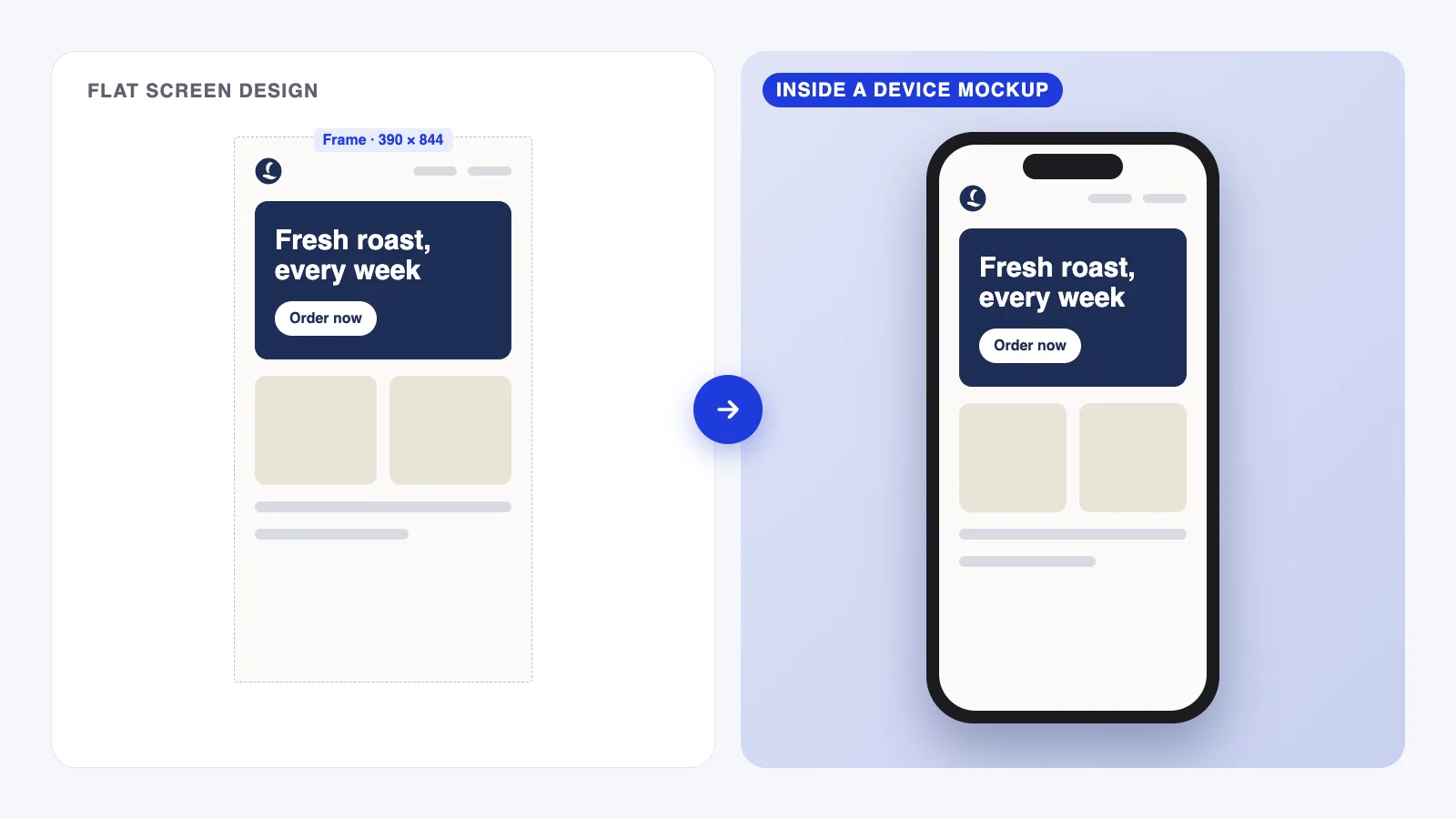
You’ve designed an app screen in Figma and want to show it on a phone for a client deck or a portfolio post. You don’t want to export it, open Photoshop and fiddle with smart objects just for that.
Good news: for screens you don’t have to. Figma can make clean, convincing device mockups on its own, with no plugins. It just can’t do everything Photoshop can, and it helps to know where that line is.
Quick answer: To make a mockup in Figma, place a device frame (a phone or laptop image or vector) on the canvas, draw a rectangle where the screen is, and fill it with your design using an image fill or a mask. Add a soft shadow, group everything, and export at 2x. Figma works best for flat or straight-on screen mockups. For curved products like cups or t-shirts, use Photoshop.
When Figma is the right tool
Figma is great for:
- Phone, tablet, laptop and browser mockups shown straight on.
- Portfolio and Dribbble shots where clarity matters more than realism.
- Quick client previews while the design is still changing, because you can update the screen in seconds.
It’s not the right tool for products with curves or fabric, like cups, bottles, t-shirts or bags. Figma can’t warp a design around a curved surface or add realistic folds. That’s what PSD mockups and smart objects are for (see our Photoshop mockup guide).
Step 1: Get a device frame
You need an image or vector of the device with an empty or replaceable screen. Some options:
- A device frame from the Figma Community. Search for the device you need, open the file, and copy the frame into your project. Check the file’s license before using it in client work.
- A transparent PNG of a phone or laptop with a cut-out screen.
- Your own simple frame. A rounded rectangle with a dark stroke and a notch looks surprisingly good for clean, flat presentations.
Place the device on your canvas and keep it at its real proportions. Hold Shift while resizing so it doesn’t stretch.
Step 2: Put your design on the screen
There are two easy ways. Use whichever feels simpler.
Option A: image fill
- Export or copy your screen design as an image (select the frame, then Copy as PNG from the right-click menu).
- Draw a rectangle exactly over the device’s screen area, matching its corner radius.
- In the right panel, under Fill, change the fill type to Image and paste or choose your screen.
- Set the image to Fill or Crop so it covers the rectangle without stretching.
Option B: mask (stays editable)
- Draw a rectangle over the screen area with the same corner radius.
- Place a copy of your actual design frame on top of it. Not an image, the real frame.
- Select both with the rectangle at the bottom, then right-click > Use as mask (or Cmd+Ctrl+M on Mac, Ctrl+Alt+M on Windows).
The mask option is the one I’d use while a design is still changing. Update the original design, and the mockup updates too if you use a component instance instead of a copy.
Step 3: Make sure the screen sits behind the frame
If the device image has a notch, camera cut-out or bezel on top, your screen needs to sit underneath it in the layers panel. Drag the screen layer below the device frame layer. If the frame has no transparent screen area, put the screen on top instead and match the corner radius carefully.
Step 4: Add a simple shadow and background
A little depth makes the mockup feel less flat:
- Select the device group and add a Drop shadow in the Effects section.
- Try a large blur (40–80), a slight Y offset (20–40) and low opacity (10–25%). Subtle beats dramatic.
- Put everything on a frame with a soft background color that suits the brand.
Avoid stacking lots of effects. One soft shadow looks clean, while three look kinda muddy.
Step 5: Export at 2x
Select the outer frame and add an export setting in the right panel:
- PNG at 2x for crisp portfolio images and slides.
- JPG at 2x if file size matters, for example on social media.
Exporting at 2x keeps text and fine lines sharp on high-resolution screens.
When to switch to Photoshop
Move to a PSD mockup when you need:
- your design wrapped around a curved or soft surface,
- realistic lighting, reflections or fabric folds, or
- a photographic scene, like a phone in a hand on a café table.
Alot of designers do both. They use Figma for clean device shots while a design evolves, and Photoshop for the final hero image.
FAQ
Do I need a plugin to make mockups in Figma?
No. Image fills, masks, shadows and export settings are built in. Plugins can save time with ready-made devices or perspective effects, but they aren’t required.
Can Figma make 3D or angled mockups?
Not natively in a realistic way. You can fake slight perspective with plugins or by using an angled device image, but for true perspective and lighting a PSD mockup gives better results.
What size should my screen design be?
Design at the device’s standard size (for example a common phone frame size), then export the final mockup at 2x. The screen should match the device frame’s proportions so it doesn’t stretch.
Can I use Figma Community device frames for client work?
Often yes, but each file has its own license. Check the file’s details or the creator’s page before using it commercially.
Your next step
Take one screen you’ve already designed, place it in a simple phone frame using the mask method, and export it at 2x. If you’re not sure whether a free device file is enough, our comparison of free vs premium mockups can help you decide.