Photoshop vs Figma vs Canva for Mockups: Which to Use?
Best software for mockups: Photoshop, Figma and Canva compared on realism, learning curve, cost and file types, with clear picks for each type of user.
By Mockova Team4 min read
Should you learn Photoshop to make mockups? Can you get away with Figma? Is Canva enough for a small business? The honest answer is that each tool is good at something different, and the right choice depends on what you make and who you are.
Here’s a straight comparison, with a clear pick for each type of person at the end.
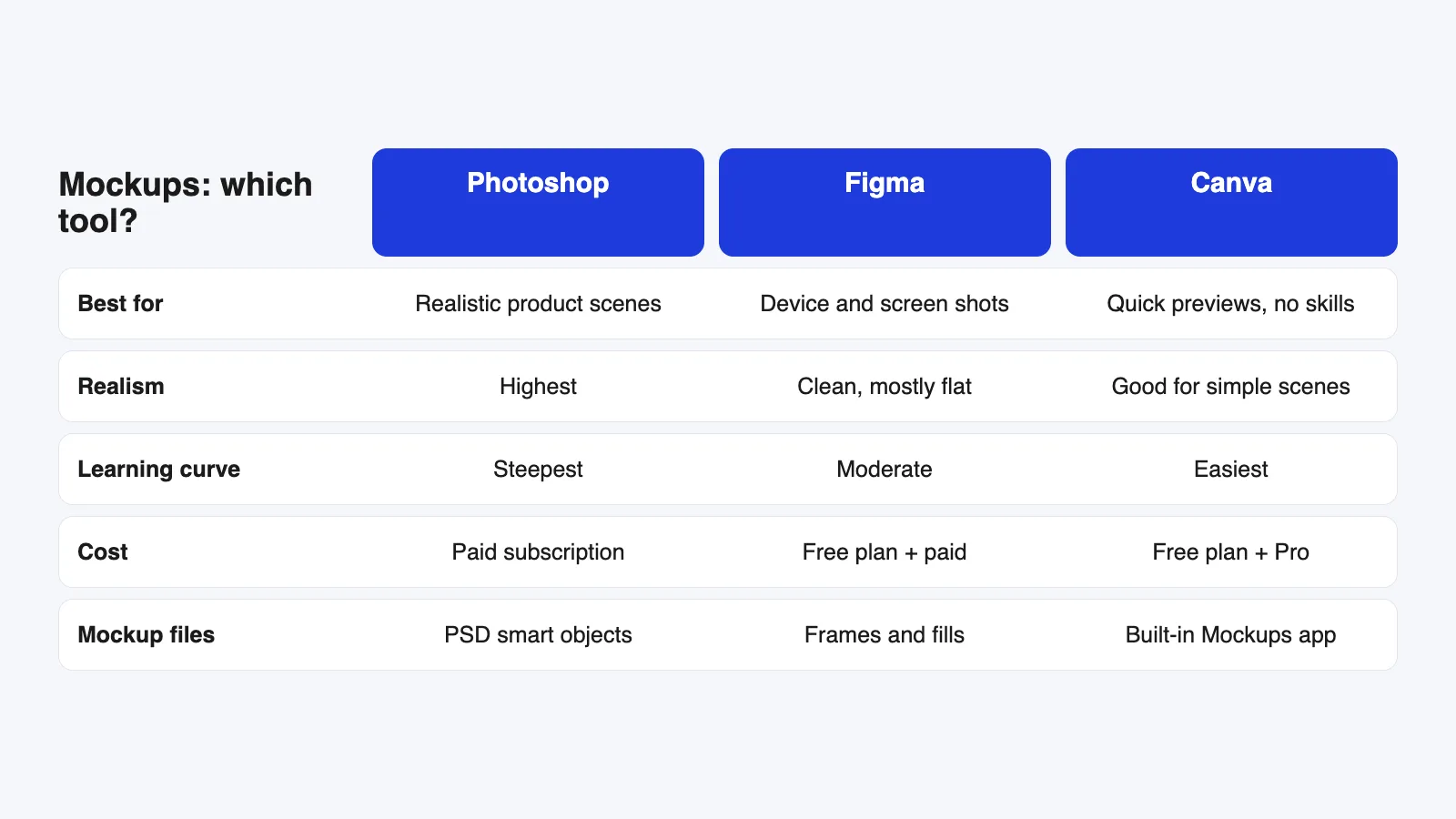
Quick answer: Use Photoshop for the most realistic product mockups (cups, packaging, apparel) using PSD files with smart objects. Use Figma for clean device and screen mockups, especially if you already design interfaces there. Use Canva for quick, simple product previews if you don’t use design software. Many designers use more than one.
Photoshop: the most realistic
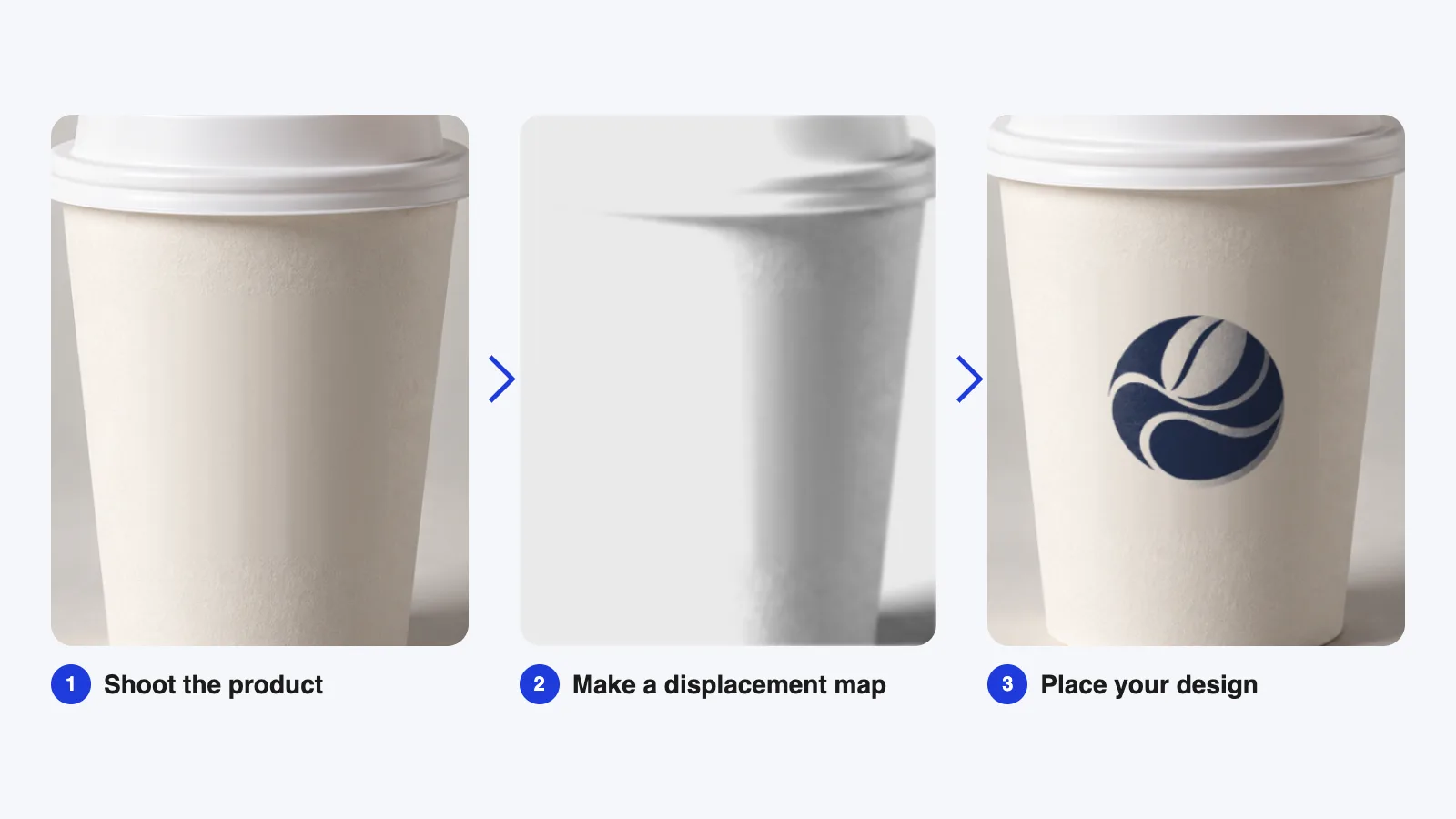
Photoshop is still the standard for product mockups, by far. Most professional mockups are PSD files with smart objects, which let your design follow curves, folds and perspective, with realistic shadows and textures on top.
Good at: packaging, apparel, print, branding scenes, anything with curves or fabric, and photographic close-ups.
Less good at: quick changes while a design is still evolving, and it takes time to learn.
Cost: a paid subscription. Check Adobe’s current plans.
If you want to start, our guide to using a PSD mockup in Photoshop covers the basics in one sitting.
Figma: clean screens, fast updates
Figma doesn’t warp designs around curved surfaces, but for screens it’s excellent. You can drop live designs into device frames with masks, update them instantly and export crisp images at 2x.
Good at: phone, tablet, laptop and browser mockups; portfolio shots; client previews while UI work is still changing.
Less good at: realistic product photos, curved surfaces and fabric.
Cost: a free plan with paid tiers for teams and extra features.
See our step-by-step guide to making a mockup in Figma.
Canva: easiest for non-designers
Canva’s built-in mockups let you drop a logo onto a mug, bag, shirt or phone in a few clicks, no design skills needed.
Good at: quick previews for small business owners, social posts and simple shop images.
Less good at: fine control over shadows and lighting, detailed close-ups and matching sets of scenes.
Cost: a free plan, with some mockups and features on Canva Pro. Check Canva’s current plans.
Our guide to Canva product mockups shows how to get the cleanest result.
Which should you use?
You’re a freelance or agency designer: learn Photoshop for product mockups, and use Figma for screen work. That covers allmost every client project.
You design apps and websites: start with Figma. Add Photoshop later for photographic hero images.
You run a small business: start with Canva. When you need more realistic product photos, try a few PSD mockups in Photoshop or a free alternative.
You’re a student: learn the basics of Photoshop smart objects. It’s the skill most job postings and client projects expect. Figma is a close second for UI students.
How much does realism matter?
It depends on who’s looking. A client choosing between logo concepts mostly needs to picture the logo in context, so a clean Figma or Canva preview often does the job. A shop listing, a packaging approval or a hero image on a portfolio is different: people look closely, and soft shadows or a design that ignores the curve of a product make the whole thing feel less trustworthy.
A simple rule: the closer someone will look and the more money depends on the image, the more realism matters. Early concept rounds can be quick and simple. Final presentations and anything customers see should be as convincing as you can make them, and that’s usually where Photoshop earns its place.
What about free alternatives?
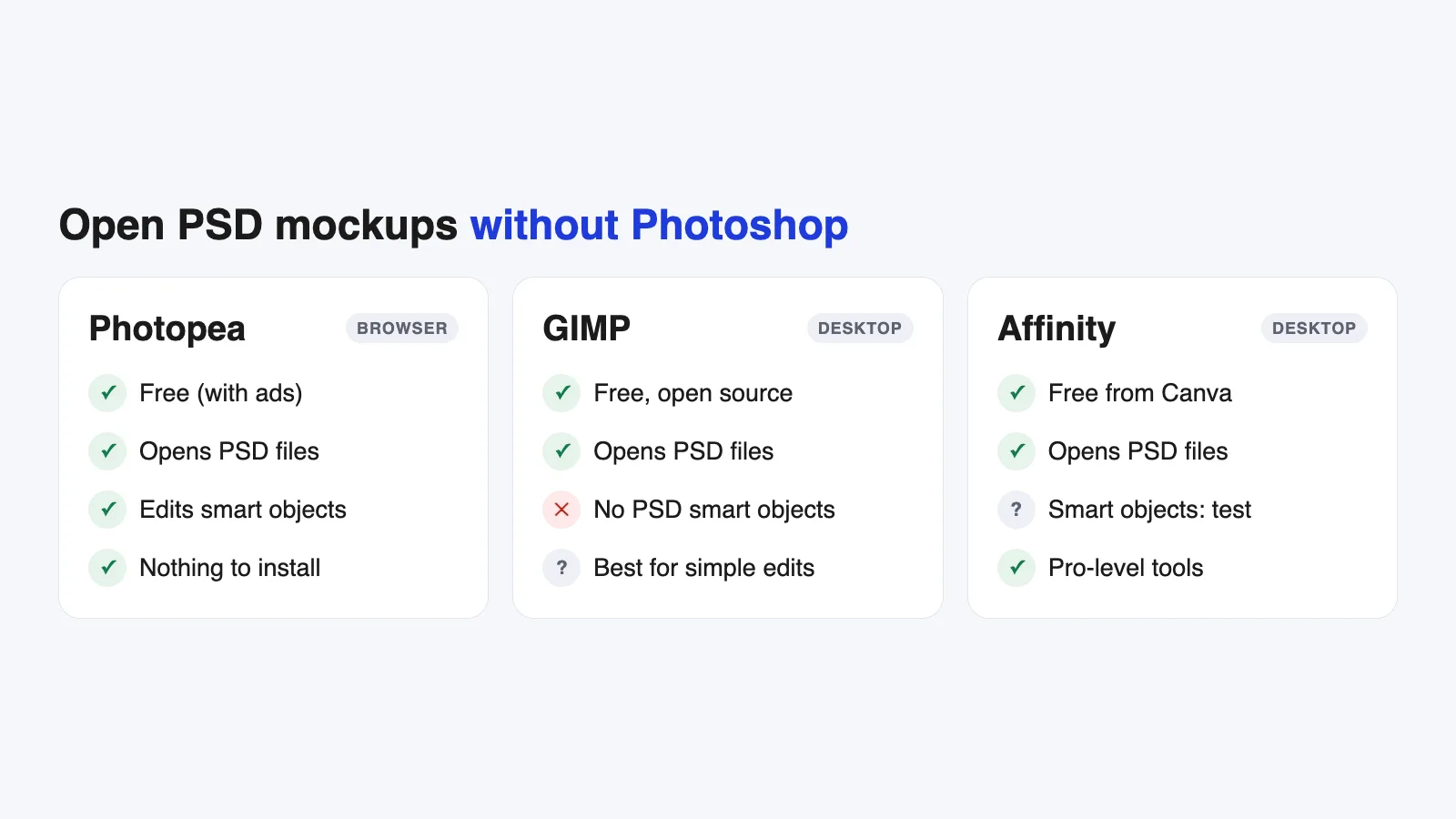
If you don’t have Photoshop, free editors like Photopea can open many PSD mockups and edit smart objects in the browser. We’ll cover the options, and their limits, in a separate guide.
Can you combine them?
Yes and most working designers do:
- Design a screen in Figma, then place it in a Photoshop scene for a realistic hero image.
- Make a quick Canva preview for a client’s social post, and use a PSD mockup for the print presentation.
- Export a logo from your design app once, as a vector or a large PNG, and use it in all three.
FAQ
What’s the best software for mockups?
For realistic product mockups, Photoshop. For screens and UI, Figma. For quick previews without design skills, Canva. The best choice depends on what you make.
Can Figma replace Photoshop for mockups?
For flat device and screen mockups, often yes. For curved products, fabric or photographic scenes, no. Photoshop’s smart objects do things Figma doesn’t.
Is Canva good enough for professional mockups?
For quick previews and simple social images, yes. For client presentations where realism matters, PSD mockups usually look better. If you’re weighing up paid files, see free vs premium mockups.
Your next step
Think about the last five mockups you needed. If most were products, learn Photoshop smart objects. If most were screens, get comfortable with Figma frames. If you just need something quick, Canva will do the job today.