Free Photoshop Alternatives That Open PSD Mockups
Open PSD without Photoshop: how Photopea, GIMP and Affinity handle PSD mockups and smart objects, what each does well, and which free editor to choose.
By Mockova Team4 min read
You’ve downloaded a great mockup. It’s a PSD file, and you don’t have Photoshop. Do you need to buy a subscription just to put a logo on a coffee cup?
Not necessarily! Several free editors can open PSD files. The catch is smart objects, the special layers mockups rely on. Some free tools handle them well, and some don’t at all.
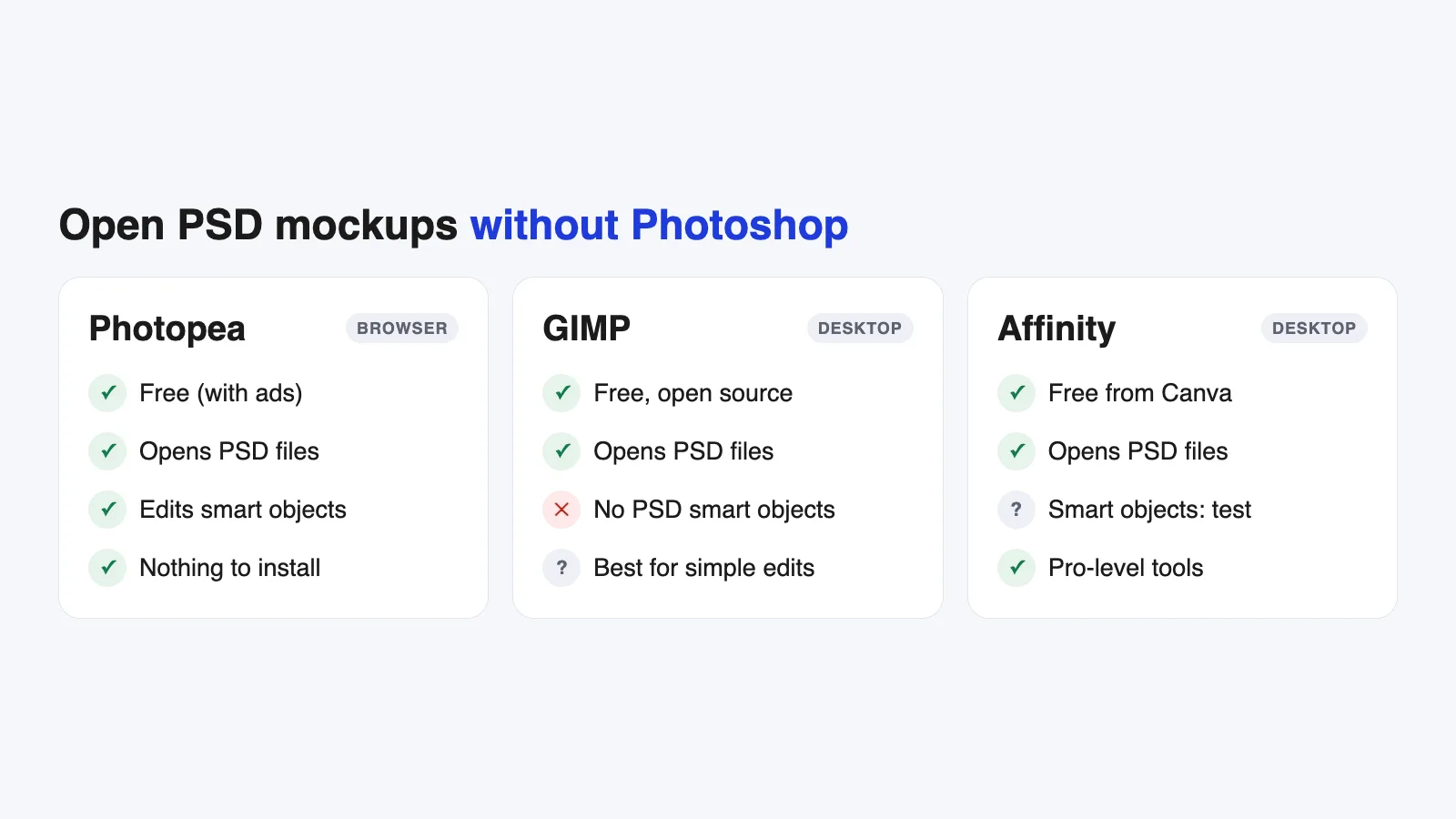
Quick answer: To open PSD mockups without Photoshop, use Photopea first. It’s free, runs in your browser and can edit smart objects in most mockups. GIMP opens PSD files but doesn’t keep smart objects editable, so it’s not great for mockups. Affinity is now free and can open PSDs, but test your specific file to see how it handles the smart objects.
Software changes quickly, so check each editor’s current features with your own files.
Why smart objects matter
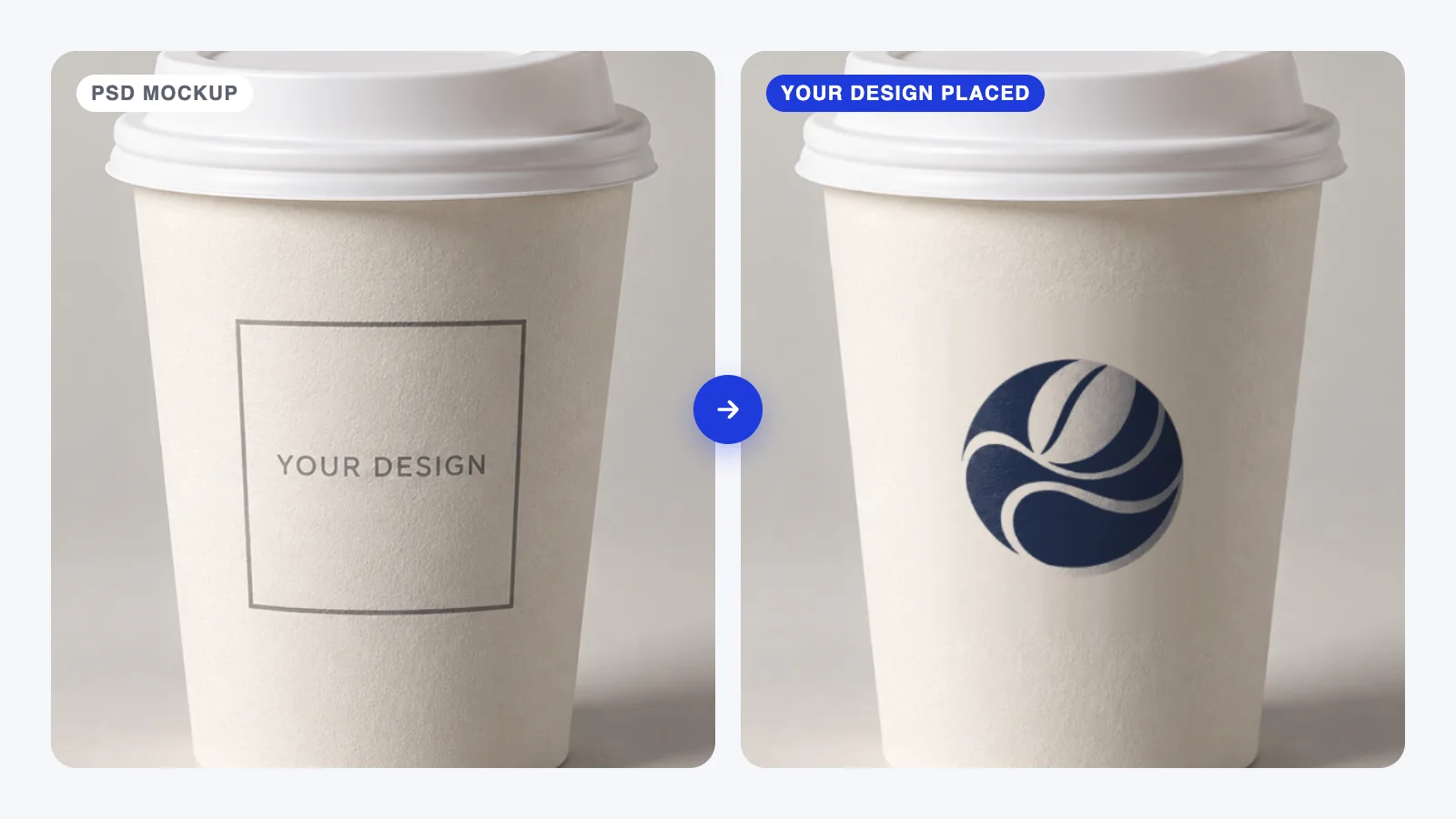
A PSD mockup works because your design goes inside a smart object: a layer that holds a separate file and applies the mockup’s warping, perspective and effects to whatever you place in it. When an editor can’t edit smart objects, it usually flattens them into a regular image. You can still see the mockup, but you can’t replace the design properly.
So the real question isn’t “can it open PSD files?” but “can it edit the smart object?”. If you’re new to this, our Photoshop mockup guide explains how smart objects work.
Photopea: the best free option for mockups
Photopea is a free, browser-based editor that looks and works a lot like Photoshop. It opens PSD files and can edit smart objects in most mockups, which makes it the first thing to try in my opinion.
How to use a mockup in Photopea:
- Go to photopea.com and open your PSD (File > Open).
- In the Layers panel, find the smart object (often named “Your Design Here”).
- Double-click its thumbnail. It opens in a new tab.
- Place your design (File > Open & Place), resize it, and hide the placeholder.
- Save the tab (File > Save, or Cmd/Ctrl+S) and switch back. The mockup updates.
- Export with File > Export As.
Good to know: it’s free with ads (a paid plan removes them), runs in any browser, and works well for typical mockups. Very large or complex files can be slow, and some effects may render a little differently than in Photoshop, so check the result.
GIMP: free, but not built for mockups
GIMP is a long-standing free, open-source image editor. It opens PSD files and keeps many layers, but it doesn’t keep PSD smart objects editable. They come in as regular image layers, so the mockup’s warping can’t be reapplied to a new design.
When GIMP still helps: retouching, simple edits, or mockups that don’t rely on smart objects. For typical PSD mockups, Photopea is the better free choice.
Affinity: now free, worth testing
Affinity, now owned by Canva, relaunched as a free, all-in-one design app for Mac and Windows. It opens PSD files and has professional photo and vector tools.
How well it handles PSD smart objects can vary from file to file. Some mockups work well, others may not transfer perfectly. Open your mockup, try replacing the design, and check the result closely before relying on it for client work.
Good to know: it’s a desktop app with a lot of power, so it’s a good long-term option if you want a full editor without a subscription. Some newer AI features may need a paid Canva plan.
Which should you use?
- You just need to finish one mockup today: Photopea.
- You want a free, full desktop editor for the long term: Affinity, after testing your mockups.
- You already use GIMP: keep it for editing, and use Photopea for smart-object mockups.
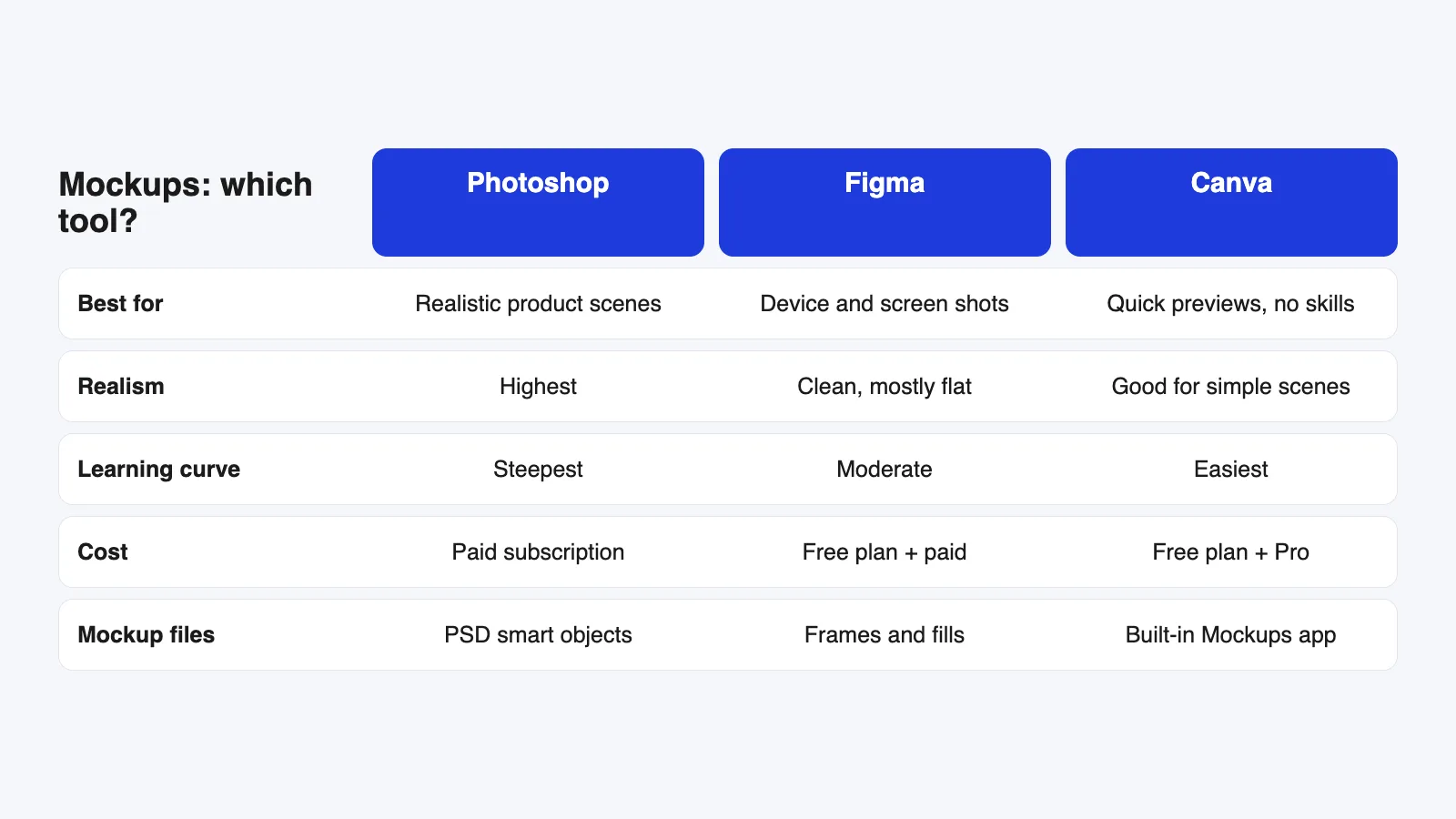
- You make mockups every week for clients: Photoshop is still the most reliable. See our comparison of Photoshop vs Figma vs Canva.
Other ways to avoid smart objects altogether
If none of these work with a particular file:
- Look for the same mockup in another format: many creators offer Figma or Canva versions.
- Use an online mockup generator for simple products.
- Build your own mockup from a photo. Our guide to making your own mockup shows how.
FAQ
Can I open a PSD file without Photoshop?
Yes. Photopea (in the browser), GIMP and Affinity can all open PSD files. For mockups, what matters is whether the editor can edit smart objects, and Photopea is the most reliable free option for that.
Is Photopea really free?
Yes, Photopea is free to use with ads. A paid plan removes the ads and adds a few extras.
Why can’t I replace the design in GIMP?
GIMP doesn’t support editable PSD smart objects, so the mockup’s design layer becomes a normal image. Use Photopea for mockups that rely on smart objects.
Will my mockup look the same as in Photoshop?
Usually close, but not always identical. Some effects and blend modes can render slightly differently, so check the final export carefully.
Your next step
Open your next PSD mockup in Photopea and replace the design using the steps above. If it works, you’ve saved yourself a subscription for now atleast.