Free Mug Mockups: Coffee Mug PSD Files for Shops and Brands
Free mug mockup PSDs: glossy ceramic, enamel rim and colored-inside coffee mugs, free for commercial use, plus how to wrap a logo and pick a background.
By Davut TekinUpdated 5 min read
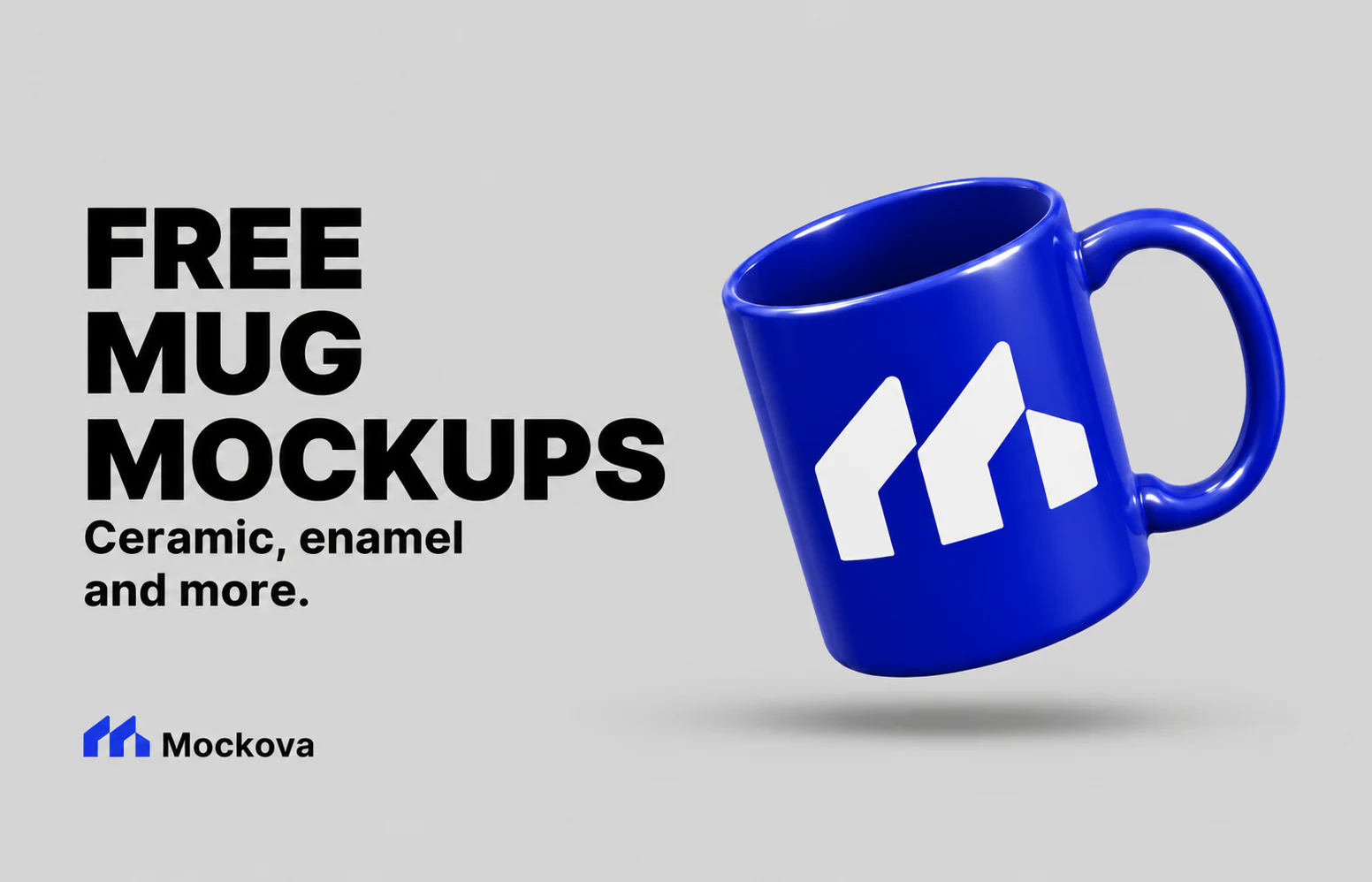
A mug mockup looks easy, right up until your logo sits flat on a curved cup. Good mug files handle that for you, with the curve, the shine and the shadows already built in.
All of these come from Mockups Design, which makes its own files and has a published license that allows commercial and client use, with no attribution. You can’t share the PSD itself or sell it on stock sites, though you can share your finished image. Read the license and the individual download page before using a file.
Quick answer: For a clean shop image, start with the glossy white ceramic mug or the mug with shadows. If your brand has a retro or camping feel, try the enamel-style rim mug. For a color accent, use the ceramic mug with a colored inside. All are free PSDs listed for commercial use.
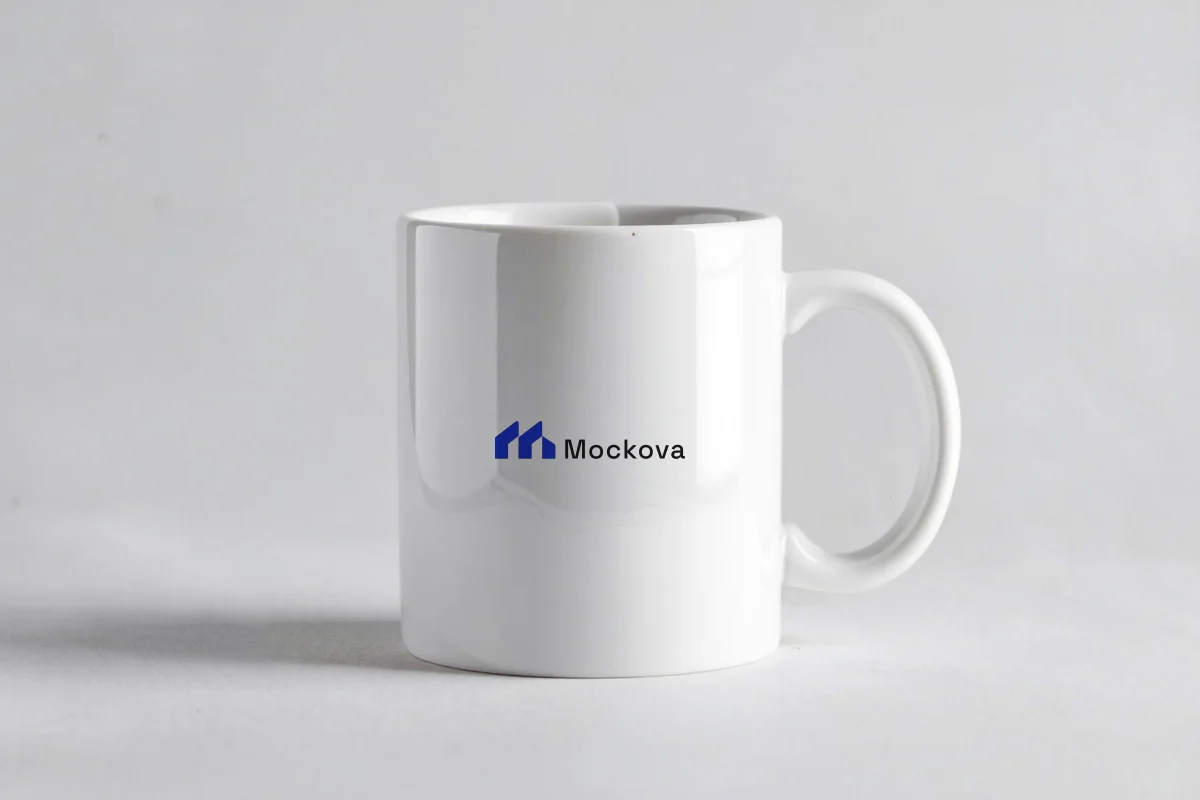
Example scene made by Mockova. The files below come from their creators.
How to use these picks
| You need | Start with | Check before using |
|---|---|---|
| A plain ceramic mug | Glossy white ceramic mug | Body shape, handle and printable side |
| An enamel-style mug | Enamel-style rim mug | Rim, capacity and print area |
| A two-tone mug | Ceramic mug with colored inside | The actual inside and handle colors |
| One quick concept | Simple mug PSD template | Whether its single view shows your design clearly |
These are editable Photoshop documents (PSDs), not ready-to-print artwork. Open a copy in Photoshop or a compatible editor such as Photopea. Double-click the design layer’s thumbnail, place your artwork in the new tab, save that tab, and return to the scene. Keep the PSD for later edits and export a JPG or PNG to share. Our Photoshop walkthrough shows each step.
The notes below help you choose a scene; they are not a hands-on compatibility test of every file. Confirm file contents, resolution and current terms on the creator’s page before downloading.
How we picked
- Published terms: a creator page with a license you can check against your project.
- Different mug styles so you can match your real product.
- Multiple scenes where possible, because a shop needs more than one image.
This list focuses on one creator so the source and license are easy to follow. It is a shortlist, rather than a comparison of every free mug template.
1. Glossy white ceramic mug
Four PSD files of a glossy white ceramic mug. Compare the shape, capacity, handle and print position with your supplier’s product before using it in a listing.
Good for: shop listings and merch ranges. Watch out for: glossy highlights can cross your design, so check that nothing important sits under one.
2. Mug with shadows
Four PSD files with shadows as part of the scene. Strong shadows add some atmosphere, which is useful for a second image or a social post.
Good for: lifestyle-style images. Watch out for: dark logos can blend into shadowed areas.
3. Ceramic mug with colored inside
Four PSD files of a white mug with a contrasting inside. It’s a nice way to show a brand color without printing it across the whole mug.
Good for: cafés and brands with one strong color. Watch out for: match the inside color to the mug your supplier really offers.
4. Enamel-style rim mug
Five PSD files with the rim that gives enamel mugs their outdoorsy look. It’s a good fit for camping, coffee and retro brands, and it stands out from all the white ceramic images in a marketplace.
Good for: outdoor and heritage brands. Watch out for: real enamel mugs have a smaller print area than you might expect.
5. Round-bellied mug
Four PSD files of a rounder shape, which feels handmade and homely. It’s handy if you sell pottery-style mugs or want something different from the standard cylinder.
Good for: gift shops and home brands. Watch out for: a rounder shape bends designs more, so keep them simple.
6. Free mug mockup
Four more PSD files in a straightforward set, a good all-round starting point if you just want to try your logo on a mug.
Good for: first tests. Watch out for: compare it with your real product’s shape before you use it in a shop.
7. Glossy ceramic mix
Two PSD files with a mix of glossy ceramic looks, useful if you’re choosing between finishes.
Good for: comparing finishes. Watch out for: only two files, so pair it with another scene for a full listing.
8. Simple mug PSD template
A single PSD for when you just need one clean image quickly.
Good for: quick previews and social posts. Watch out for: you’ll want more angles for a full listing.
Tips for better mug mockups
- Use the actual print area. Follow your supplier’s template. A front-facing view should show the intended part of a wrap design, not shrink the entire wrap onto the front.
- Mind the handle. Most mugs are photographed with the handle on one side, so check which side your printer uses.
- Use a transparent PNG or vector at a good size to avoid a blurry result.
- Show the color you sell. If the real mug is cream, don’t show bright white.
If you don’t use Photoshop, Canva’s mockups are a quick alternative, and Photopea can open many PSDs free in your browser.
Want a quick preview without Photoshop? Mockova’s free mockup generator has a mug scene. Upload your logo, adjust its size and download a PNG, with no signup and no watermark.
FAQ
Can I use these mug mockups on Etsy?
Check both the creator’s commercial-use terms and Etsy’s listing-image requirements. Permission to use a template does not automatically make a simulated image suitable for every product category.
What size should my mug design be?
Use your printer’s template for the exact mug model, including safe areas near the handle. There is no single wrap size that fits every mug. The mockup’s design area is a preview, not a production specification.
How do I make my logo follow the curve?
Place it inside the smart object rather than on top of the mockup. Our PSD mockup guide shows how.
What background works best for a coffee mug mockup?
A plain, light background for the first listing image, so the mug reads clearly as a thumbnail. Save wooden tables, kitchens and café scenes for the second or third image. If the PSD has a background color layer, try a soft tone from your brand palette.
Your next step
Download the glossy white set, place your logo, and zoom out to thumbnail size. Check the shape and print position against the real mug, then confirm the marketplace’s image rules before using it in a listing.
About the author
Davut Tekin
Senior Product Designer
Davut Tekin is a Senior Product Designer with 10+ years of experience. He runs Mockova and writes about choosing, editing and presenting design mockups.
See Davut’s design work at davut.me →