Instagram Mockup: How to Preview Posts, Stories and Your Grid
How to make an Instagram mockup in Figma or Canva: preview feed posts, stories and your profile grid at the right sizes before you publish anything.
By Davut Tekin6 min read
A client approves nine post designs as separate files. Then they go live, and the grid looks wrong: two dark posts sit side by side, the logo on the third one is cropped in the profile view, and the story text hides behind the reply bar.
An Instagram mockup catches all of that before anything is published. It’s a preview of how your posts, stories and profile grid will actually look, built at the sizes Instagram uses. You don’t need a paid tool or a special PSD to make one.
Quick answer: To make an Instagram mockup, design each post at 1080 × 1350 px (4:5), then place copies in a three-column grid of 3:4 cells to preview your profile. For stories, use a 1080 × 1920 px frame and keep text away from the top and bottom edges. Figma and Canva both work, and you can drop a finished post onto a phone mockup for client presentations.
Three kinds of Instagram mockup
Most people searching for an Instagram mockup want one of these:
- A post mockup. A single post shown inside a phone or a feed layout, often for a client presentation or a portfolio.
- A grid mockup. Your next six or nine posts arranged like your profile, so you can check the rhythm of colors and layouts.
- A story mockup. A vertical frame with the areas Instagram covers marked out, so nothing important ends up under the profile name or the reply bar.
They solve different problems. The grid mockup is the one people skip, and its the one that saves the most embarrassment.
Instagram mockup sizes
| What you’re previewing | Working size | Ratio | Watch out for |
|---|---|---|---|
| Portrait feed post | 1080 × 1350 px | 4:5 | The profile grid shows a slightly narrower crop |
| Square feed post | 1080 × 1080 px | 1:1 | Looks small in the feed next to portrait posts |
| Profile grid cell | 1080 × 1440 px | 3:4 | Trims a thin strip from each side of a 4:5 post |
| Story or reel | 1080 × 1920 px | 9:16 | Top and bottom are covered by the app’s interface |
These are working sizes, not promises. Instagram changes how it crops things from time to time, so check a real post in the app before you commit to a whole month of designs. Our mockup export size guide explains the crops in more detail.
How to make an Instagram mockup in Figma
Figma is the fastest option if you design posts there already, because the mockup can update when the design changes.
- Make the post frames. Create a frame at 1080 × 1350 px for each post and design inside it. Turn each finished post into a component.
- Build the grid. Make a new frame and add nine rectangles at a 3:4 ratio, three per row, with a 2–4 px gap. Place an instance of each post component inside a cell and set it to fill, centered. The cells crop the sides just like the profile view.
- Add a fake profile header. A circle for the profile photo, the account name and a bio line above the grid. It makes the mockup read as a profile at a glance, and clients get it immediately.
- Make a story frame. Create a 1080 × 1920 px frame. Add two semi-transparent rectangles about 250 px tall at the top and bottom to mark the areas the app covers. Keep text and buttons out of them.
Because the grid uses instances, changing a post updates the preview straight away. If you’re new to masks and frames, our guide to making a mockup in Figma covers the basics.
How to make an Instagram mockup in Canva
Canva works well if you design social posts there and don’t want another tool.
- Design your posts using Canva’s Instagram post size, and download them as PNGs.
- Create a custom design for the grid preview, for example 1080 × 1440 px, and build a three-column layout with Frames or a grid element.
- Drop each downloaded post into a cell. Frames crop the image to the cell shape, which shows you roughly what the profile will cut off.
- For a single post on a phone, use Canva’s built-in mockups and place the post on a phone screen. Our Canva mockup guide shows where to find them.
The grid in Canva won’t update automatically when you change a post, so re-export and swap the images after edits. It’s a little more manual then Figma, but it’s fine for a monthly plan.
Put the post on a phone for clients
A flat grid is perfect for checking the plan. For a client deck or a portfolio, a phone makes the work feel real.
Take a screenshot of your grid preview or your single post at the phone’s screen proportions, then place it in a phone mockup. Our free iPhone mockups are a good starting point, and a straight-on device frame keeps the post easy to read.
Keep it honest. If you show the post inside a full fake Instagram screen, use realistic captions and like counts, or none at all. Clients notice when the numbers look made up.
Check your grid before you post
Once the grid mockup is built, zoom out until it’s about the size of a phone screen and look for:
- Clumps of color. Two very dark or very busy posts next to each other pull the eye.
- Cropped text. Anything near the left or right edge of a 4:5 post may be trimmed in the grid.
- Repeated layouts. Three quote posts in a row look lazy, even if each one is good.
- The first row. It’s what new visitors see first, so put your strongest work there.
A useful habit: keep the last nine live posts in the grid mockup too. New posts appear at the top left and push everything along, so you need to see them next to what’s already there.
A note on logos and screenshots
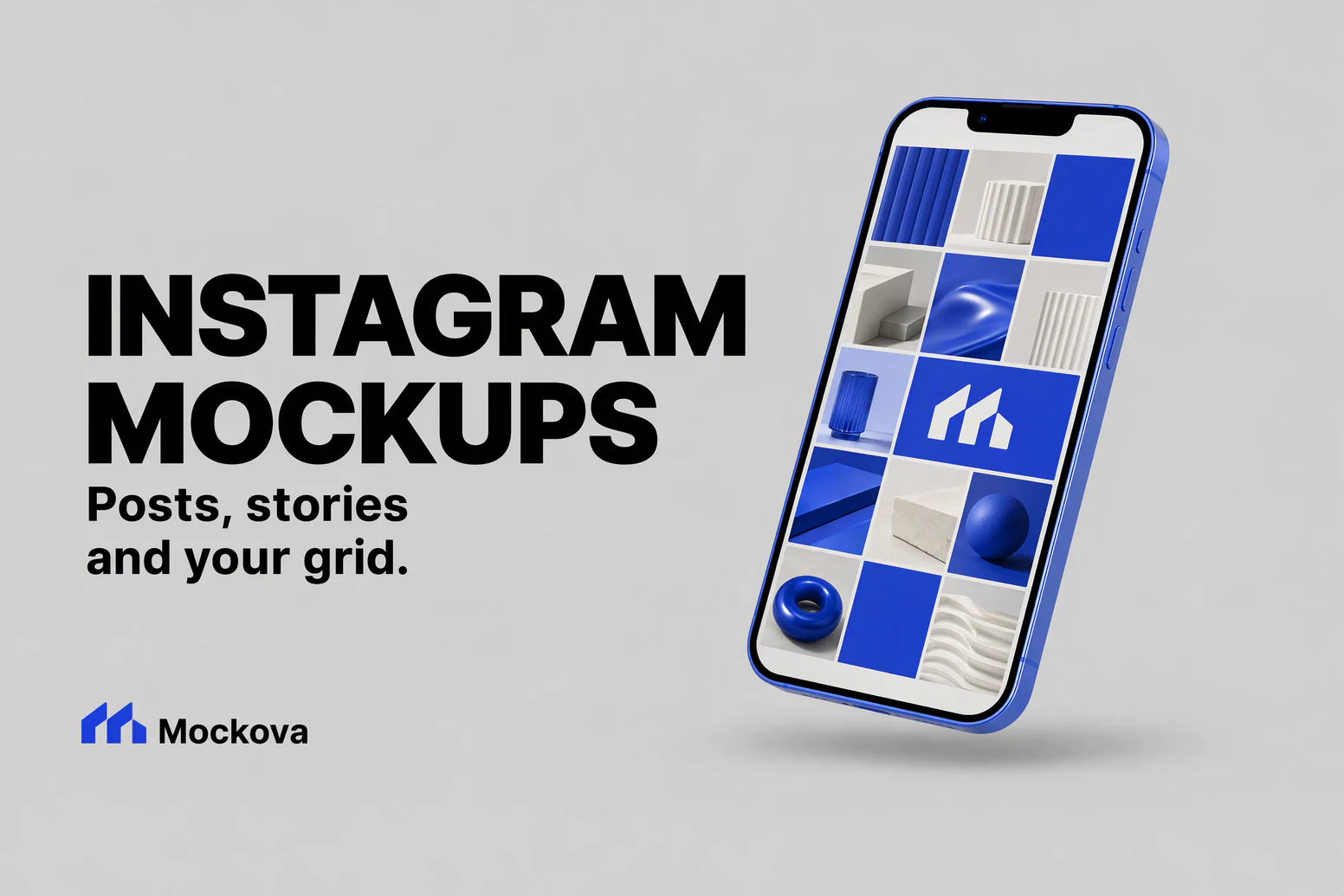
For internal planning and client approvals, an Instagram-style layout is normal practice. If the mockup will appear in an ad, on your website or in something you sell, check Meta’s brand guidelines for using Instagram’s name, logo and interface. When in doubt, use a simple phone and a grid without the app’s logo, like the cover of this guide
FAQ
What size is an Instagram post mockup?
Design the post at 1080 × 1350 px for a 4:5 portrait post, or 1080 × 1080 px for a square. For the profile grid preview, use 3:4 cells, since that’s how the profile shows posts.
Can I see my Instagram grid before posting?
Yes. Build a grid mockup in Figma or Canva with your planned posts and your recent live ones. Some scheduling apps also show a grid preview, but a mockup works with any account and costs nothing.
Is there a free Instagram mockup PSD?
Plenty of sites offer them, but many are re-uploads with unclear licenses. It’s often quicker to build the grid yourself and use a phone mockup from a creator with a clear license, like the ones in our iPhone mockup roundup.
How do I mock up a carousel?
Make every slide the same size, usually 1080 × 1350 px, and lay them out side by side in one long frame. Instagram generally crops all slides to match the first one, so mixed sizes cause surprises.
Your next step
Take your next nine planned posts and your last three live ones, and drop them into a three-column grid of 3:4 cells. Look at it at phone size for ten seconds. Whatever bothers you there will bother your followers too, and it’s much easier to fix now.
About the author
Davut Tekin
Senior Product Designer
Davut Tekin is a Senior Product Designer with 10+ years of experience. He runs Mockova and writes about choosing, editing and presenting design mockups.
See Davut’s design work at davut.me →