Canva Mockups Not Working? 8 Fixes to Try First
Canva mockups not working? Fix a blank or grey screen, an app that won't load, a design that won't apply and blurry exports with these simple steps.
By Davut TekinUpdated 5 min read
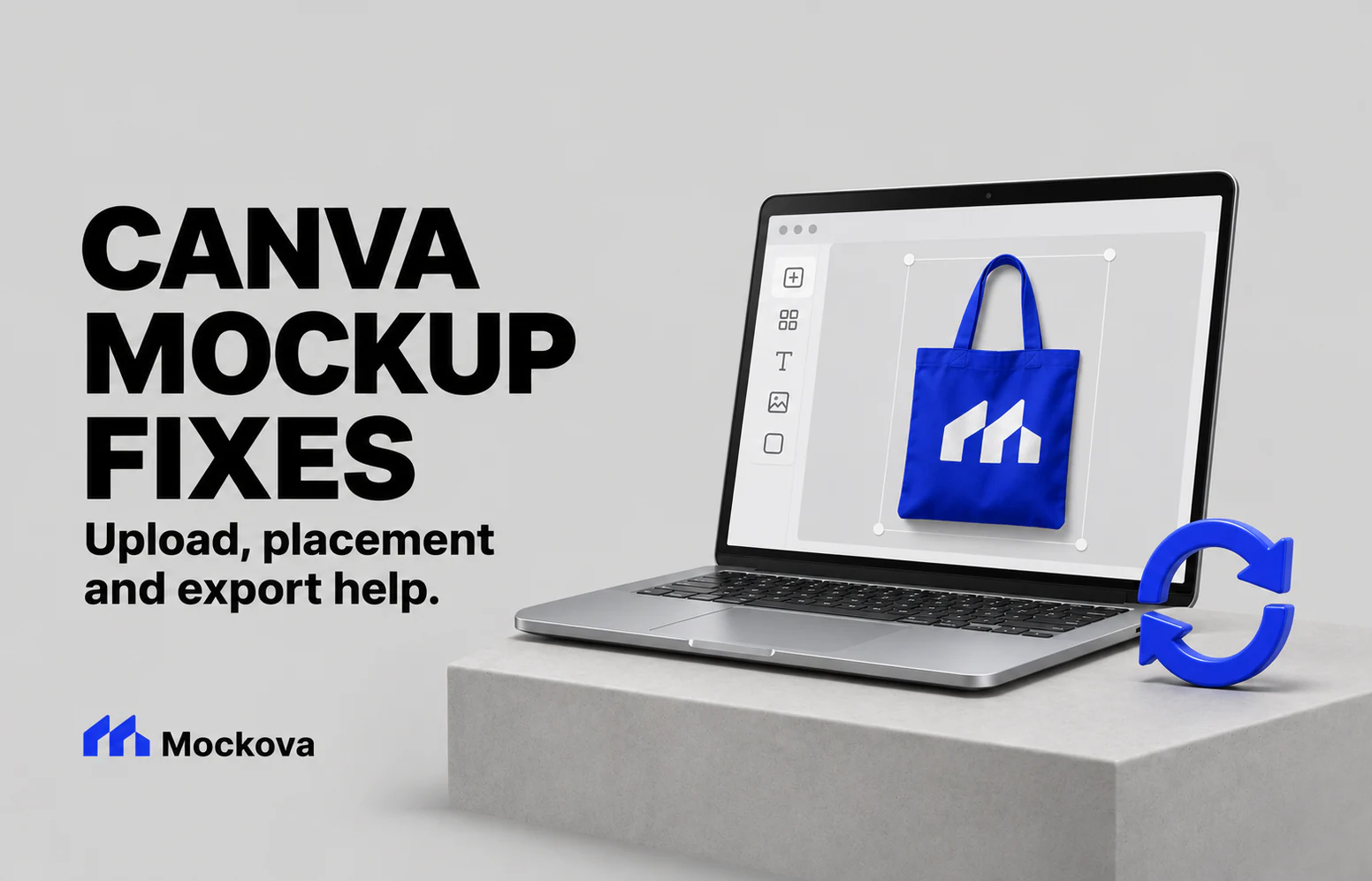
You open Canva’s Mockups app, and nothing happens. Or the panel stays grey, or your logo refuses to sit on the mug, or it’s all fine until the download comes out blurry.
When Canva mockups are not working, start with the symptom you can see. Save your work before refreshing, signing out or changing browser settings, then test one change at a time.
Quick answer: If the app will not load, save your work, check Canva’s status page, and test a current browser or private window. If one image will not apply, try a small PNG or JPG as a test. If the result is blurry, compare the original artwork, its placement size and the downloaded dimensions before changing anything.
Canva mockups not working? Start with your symptom
| What you see | Try first | Continue with |
|---|---|---|
| Mockups panel will not load | Check Canva’s service status | Fixes 1 to 4 |
| Cannot find Mockups | Search Elements or Apps | Fix 5 |
| One image will not apply | Test a simple PNG or JPG | Fix 6 |
| Preview works but export is blurry | Compare preview and download dimensions | Fix 7 |
| Upgrade message or paid scene | Check the scene and plan | Fix 8 |
Fix 1: Check whether it’s a service issue
Before you change anything, look at Canva’s status page. If an incident affects Mockups or the editor, follow the status updates before changing your files or browser settings.
If there’s an active incident, you’ll probably just have to wait.
Fix 2: Refresh and sign back in
Confirm Canva has saved your design, then reload the page and reopen it. If the problem continues, sign out and back in. Check the same design again before trying another fix.
Fix 3: Try another browser or a private window
Open Canva in a private or incognito window. If it works there, extensions, stored data or account state are possible causes; compare one change at a time.
- Test extensions one at a time in a temporary troubleshooting session, then restore your usual protections.
- Clear Canva’s site data only after saving your work. This may sign you out; avoid clearing unrelated sites.
- Update your browser.
- Try Chrome, Edge, Firefox or Safari, whichever you weren’t using.
Fix 4: Fix a blank or grey screen
A blank editor can have several causes, including JavaScript being disabled. Check your browser’s site settings and allow JavaScript for canva.com, then reload.
Fix 5: Find the app again
Sometimes it isn’t broken, just moved. In the editor, check Elements > Mockups, or search for Mockups under Apps. Canva rearranges its menus from time to time, and older tutorials may show a different route. Smartmockups closed as a separate service; use Canva’s current Mockups tool.
Fix 6: Your design won’t upload or apply
First check whether the problem affects one file or every file. A simple test image helps separate a file issue from an app issue.
- Use a PNG or JPG. Convert anything unusual first.
- Reduce very large files. A logo doesn’t need to be enormous. Keep enough pixels for the finished placement, and check the tool’s current upload limits.
- Check your upload finished before you try applying it.
- Remove the background first if a white box shows up. That means your file isn’t transparent. Our Canva mockup guide explains how to prepare a logo.
Fix 7: The result is blurry or badly placed
The app is working, but the image doesn’t look right.
- Blurry logo: compare the source dimensions with its placed size. If it is being enlarged, use a higher-resolution original; enlarging the same small file will not restore detail.
- Blurry download: compare the downloaded pixel dimensions with the preview. Try PNG for fine graphics and check the export-size options on your plan.
- Wrong position: adjust the crop or position controls before you save it to your design.
- Stretched: make sure your artwork’s shape suits the product’s print area.
More causes are covered in our guide to fixing a blurry mockup.
Fix 8: It says you need Pro
Some mockups and features may be limited to paid plans, and those details change. If a scene shows a crown or asks you to upgrade, try a different scene or check what your plan includes. Free-plan limits are not a bug, even though they can feel like one.
Still stuck?
Try these before you give up:
- Test on another device. If the same design works elsewhere, compare the browser, account and network to narrow down the cause.
- Switch networks. Work or school networks can block parts of an app. If you are authorized to use another network, compare connectivity there; do not bypass a work or school access policy.
- Contact Canva Support, with the browser version, file type and dimensions, exact error message, and steps that reproduce it. Remove private details from screenshots.
Meanwhile, if you need the image today, you have options. Try another online mockup generator, or open a PSD in Photopea for free.
FAQ
Why can’t I use mockups on Canva?
Usually it’s one of three things: the Mockups app is still loading or blocked by a browser extension, the scene you picked needs Canva Pro, or your upload is a format the app can’t place. Refresh, try a private window, and check for a Pro crown on the scene before anything else.
Why is the Mockups app missing from Canva?
Search for it under Apps in the left panel of the editor. If it isn’t there, try a different browser or account, since availability and layout can change.
Why is my logo showing a white box in Canva mockups?
Your file has a white background. Export a transparent PNG and upload it again.
Why are Canva mockups blurry?
The most common cause is a small source file. Compare the source, placement and downloaded dimensions. Start from a higher-resolution original when it is being enlarged; PNG alone does not add detail.
Does Canva work offline?
The Mockups app needs a connection, so check your internet if nothing loads.
Your next step
Bookmark Canva’s status page, and keep a large transparent PNG of your logo somewhere handy. Use the symptom table to choose one test, then note whether it changed the result. That record will also help if you need support.
About the author
Davut Tekin
Senior Product Designer
Davut Tekin is a Senior Product Designer with 10+ years of experience. He runs Mockova and writes about choosing, editing and presenting design mockups.
See Davut’s design work at davut.me →