How to Use Mockups to Sell Print-on-Demand Products
Print on demand mockups for Etsy and Shopify: flat lay vs lifestyle images, which photos to use first, color variants, licensing and mistakes that hurt sales.
By Davut TekinUpdated 5 min read
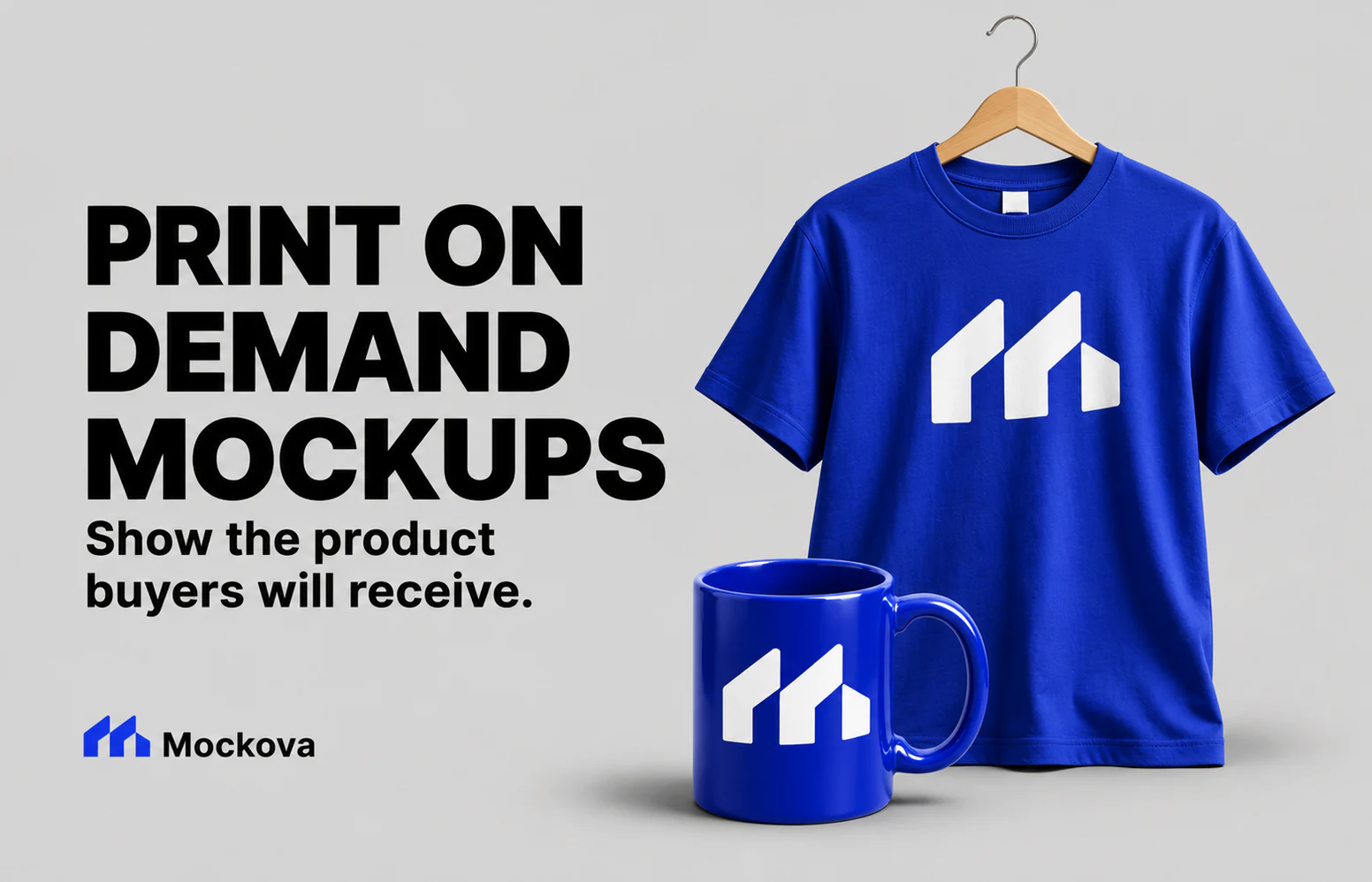
With print-on-demand, the product doesn’t exist until someone orders it. Your shirts, mugs and posters are only images, and for most shoppers that image is the product. If it looks flat or fake, they scroll past.
That makes mockups the most important part of a print-on-demand listing. Good ones show the design clearly, look like a real product, and help the buyer imagine owning it.
Quick answer: Use a clean flat lay or front view as your first image so buyers can see the design clearly, then add one or two lifestyle mockups that show the product in use. Show color variants, keep a consistent style across your shop, check that the mockup license allows product listings, and avoid mockups that misrepresent the real product.
Flat lay vs lifestyle mockups
Both have a job and most good listings use both.
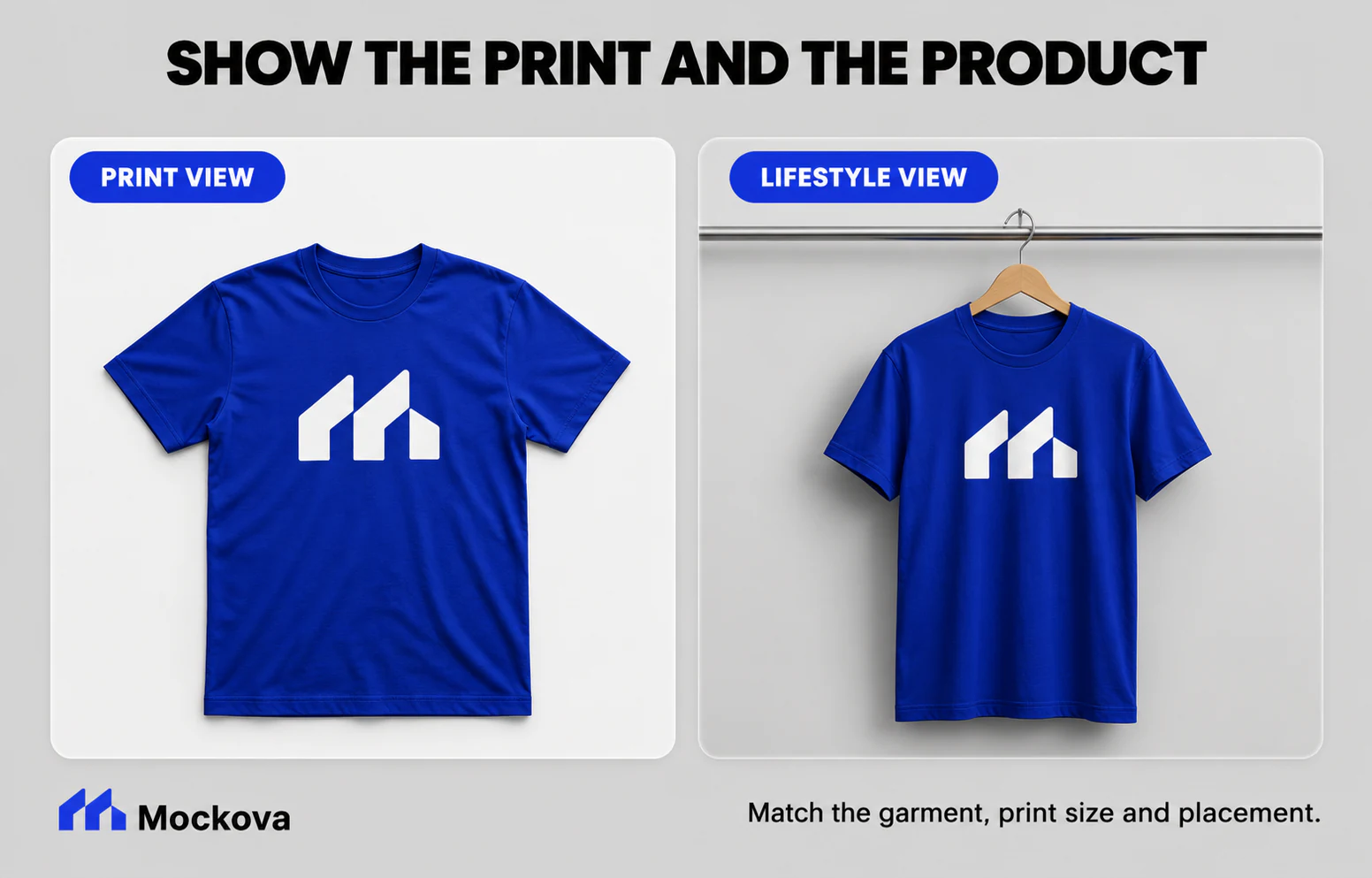
Flat lay or front view: the product on a plain background, design clearly visible. It’s the fastest way for a shopper to understand what they’re buying, so it’s usually the best first image.
Lifestyle: the product being worn or used, on a hanger, in a kitchen, on a desk. It adds feeling and scale. It’s great for a second or third image, and for social posts.
Which print on demand mockup to put first
In a busy search result, your first image is tiny. It should answer “what is this?” in half a second:
- Show the whole product with the design clearly visible.
- Use a plain or simple background that contrasts with the product color.
- Avoid busy props that compete with the design.
Save the lifestyle shots for the gallery, once the buyer has clicked in.
Show the colors and sizes you sell
If a design comes in five shirt colors, show them. Either use a mockup with an editable color layer and export each version, or make one image showing all the colors side by side.
Make sure the colors match what the printer actually produces. A bright red in the mockup that arrives as a darker red leads to disappointed buyers and returns.
For scale, include at least one image where the size is obvious, like a mug in a hand or a poster on a wall next to furniture.
Keep a consistent style across your shop
Shops look more trustworthy when listings match: similar backgrounds, similar lighting, the same style of first image. Pick two or three mockup scenes and reuse them for every design.
It also saves a lot of time. You build your scenes once, then drop in new designs.
Check the license covers product listings
This is where print-on-demand sellers get caught out. Using a mockup to sell products is commercial use, and some licenses that allow “commercial use” still exclude product listings or merchandise.
Before using a mockup in your shop, look for wording that clearly allows e-commerce, product listings or merchandise. If it’s unclear, ask the creator. Our guide to mockup licenses explains the common terms.
Don’t misrepresent the product
A mockup should show what the buyer will actually get. Be careful with:
- Fabric and fit. Don’t show a heavyweight, boxy tee if you sell a thin, fitted one.
- Print size. Keep the design the size it will really print.
- Print quality. Avoid effects that make the print look more vivid or textured than it will be.
Honest images lead to less returns and better reviews.
Write the listing around the mockup
The mockup gets the click, and the text closes the sale. Mention what the image can’t show: the fabric weight, the fit, how the print feels, and the care instructions. If a mockup shows a color that varies slightly between print runs, say so. Clear text next to honest images builds the kind of trust that turns a one-time buyer into a repeat customer.
Quick tools for getting started
- Canva for quick previews if you don’t use design software. See our guide to Canva product mockups.
- PSD mockups in Photoshop or Photopea for more realistic results and full control.
- Your print-on-demand platform’s mockup generator for basic images that match their products exactly.
If you’re choosing scenes, our guide to choosing the right mockup has a quick checklist.
Check the marketplace’s image rules
A license for a mockup and permission to use it as a listing image are separate questions. Check Etsy’s current image requirements for the item category, including when actual-item or actual-result photos are required and what exceptions apply. A simulated scene should not create false expectations about material, scale or what the buyer receives.
FAQ
Can I use free mockups for print-on-demand listings?
Only if the license allows product listings or merchandise. Check each mockup’s license on the creator’s page, and ask if it isn’t clear.
How many images should a listing have?
Enough to show the design, the colors and the product in use. Many sellers use a clear first image, a color chart and one or two lifestyle shots.
Should I use my platform’s mockups or my own?
Platform mockups match the product exactly and are quick. Your own mockups help you stand out. Many sellers use both.
Your next step
Pick your best-selling design and redo its first image as a clean front view on a plain background. Then add one lifestyle mockup. Compare clicks over the next few weeks, and use what works for the rest of your shop.
About the author
Davut Tekin
Senior Product Designer
Davut Tekin is a Senior Product Designer with 10+ years of experience. He runs Mockova and writes about choosing, editing and presenting design mockups.
See Davut’s design work at davut.me →